Price list settings
A quotation price list can be handed to a customer as a web page: they open a personal link, type in quantities and press «Надіслати замовлення» ("Send order"; the page is in Ukrainian). The order arrives in the system — and that is where this window starts. It answers two questions: what the created order looks like and who gets told about it.
Where to find it: Modules → Sales Orders → Settings → Price list settings
A worked example
What the order looks like
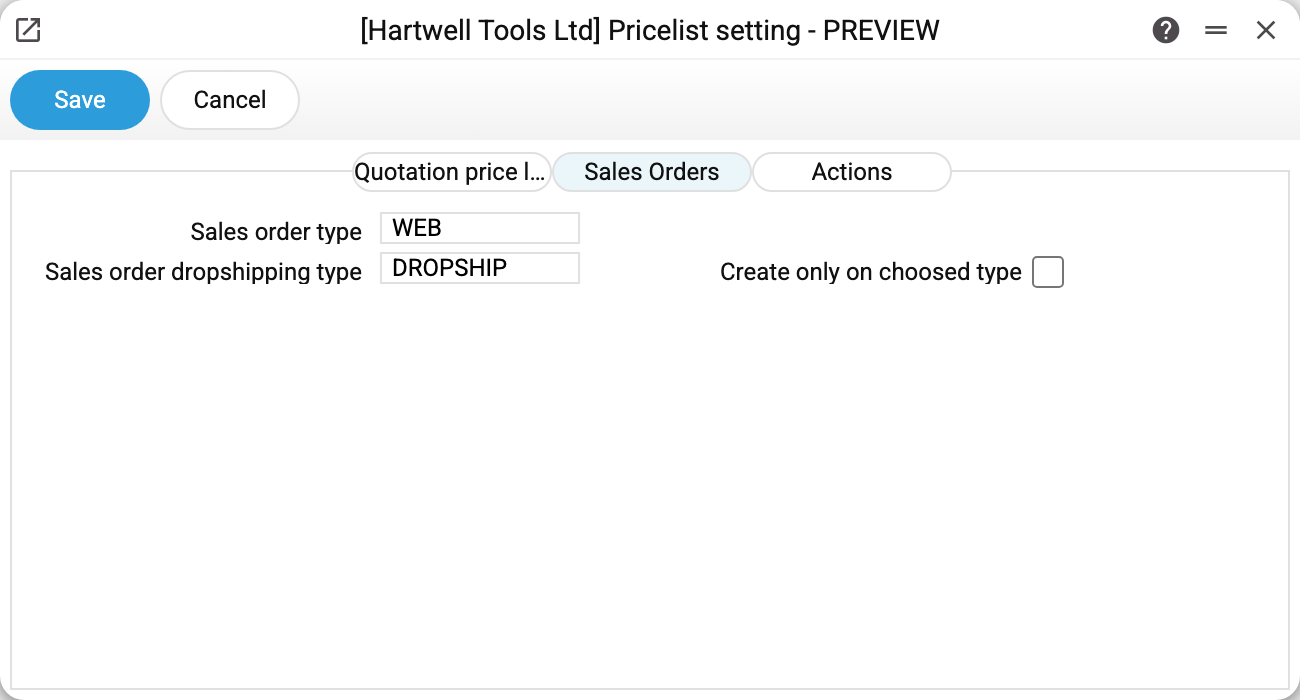
"Sales order type" is the type given to an order that arrives from the
page. In the demo it is WEB: reports can then separate everything that came
from the site from the orders entered by the sales team.
"Sales order dropshipping type" is a separate type for direct deliveries, where the supplier ships straight to the customer. Which of the two types is used is the buyer's choice: on the price list page (it is in Ukrainian), on the order comment tab, there is a «Дропшиппінг» ("dropshipping") checkbox. Ticked — the order gets the dropshipping type; not ticked — the ordinary one. There is no flag on the price list itself for this.
These fields matter most when sales orders setting has "Require Order Class" switched on: without a type the document will not save at all. If no type is set here, the system — rather than lose the customer's order — falls back to the first type it finds in the register, so it is better to choose one deliberately.
Both types are codes from the Sales order types register, so pick them from the list: the field does not turn the input into capitals, and a code the register does not have (including one typed in lower case) will not be saved — «Field "Sales order type" is not found!».
Who gets told
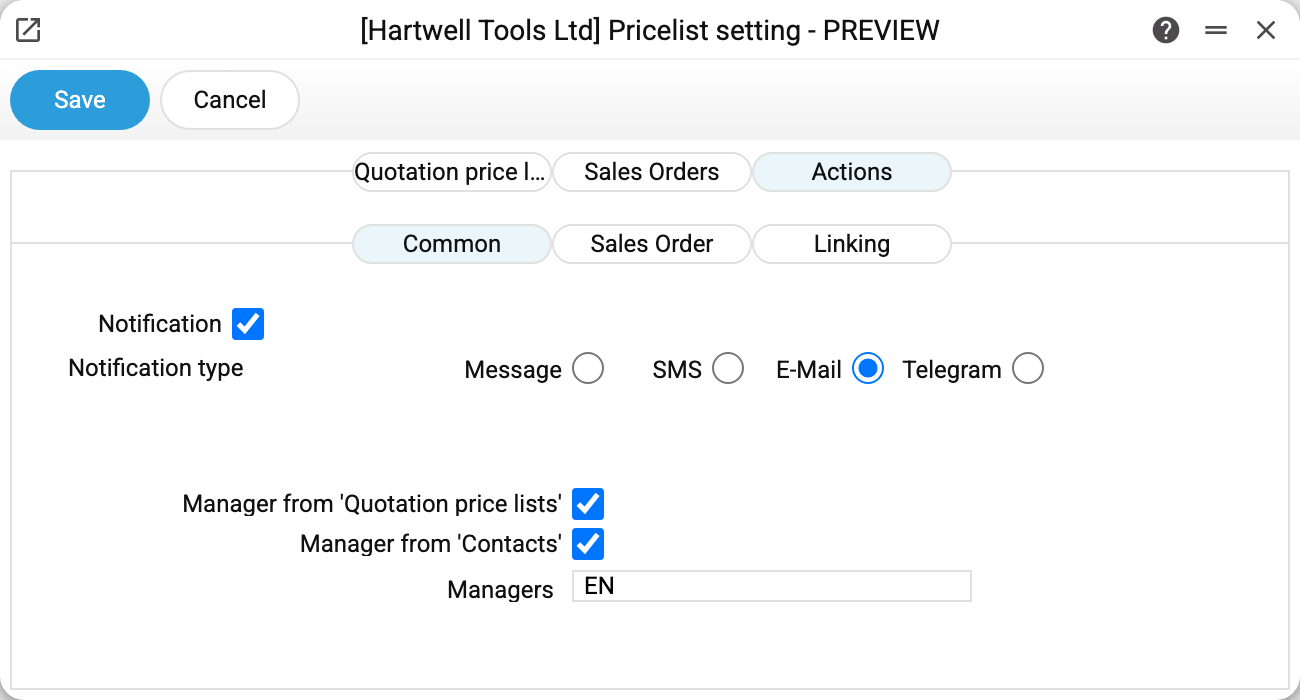
A web order arrives whenever it suits the customer, so the system can raise an action alongside the document. The action is created only when "Create actions" is ticked on the "Sales Order" sub-tab (described below). The "Common" tab decides who receives that action and how they are nudged.
"Notification" and "Notification type" control whether the assignee is reminded and how: an in-app message, SMS, e-mail or Telegram. Without the "Notification" flag the action is created quietly, to be found in the action list.
Assignees are collected from three sources at once, not one of three:
- "Manager from 'Quotation price lists'" — the salesperson named on the price list itself;
- "Manager from 'Contacts'" — the salesperson from the customer's card;
- "Managers" — a fixed list of logins separated by commas (here
EN), usually the team lead or whoever is on duty.
The lists are merged, and every assignee becomes a row of the action. Having all three ticked is perfectly normal: the customer's manager, the price list's manager and the duty person all get it.
Both for a web order and for linking a price list the system strips stray
spaces, empty entries and duplicates itself: EN, OLEG gives two assignees —
EN and OLEG.
The text of the action
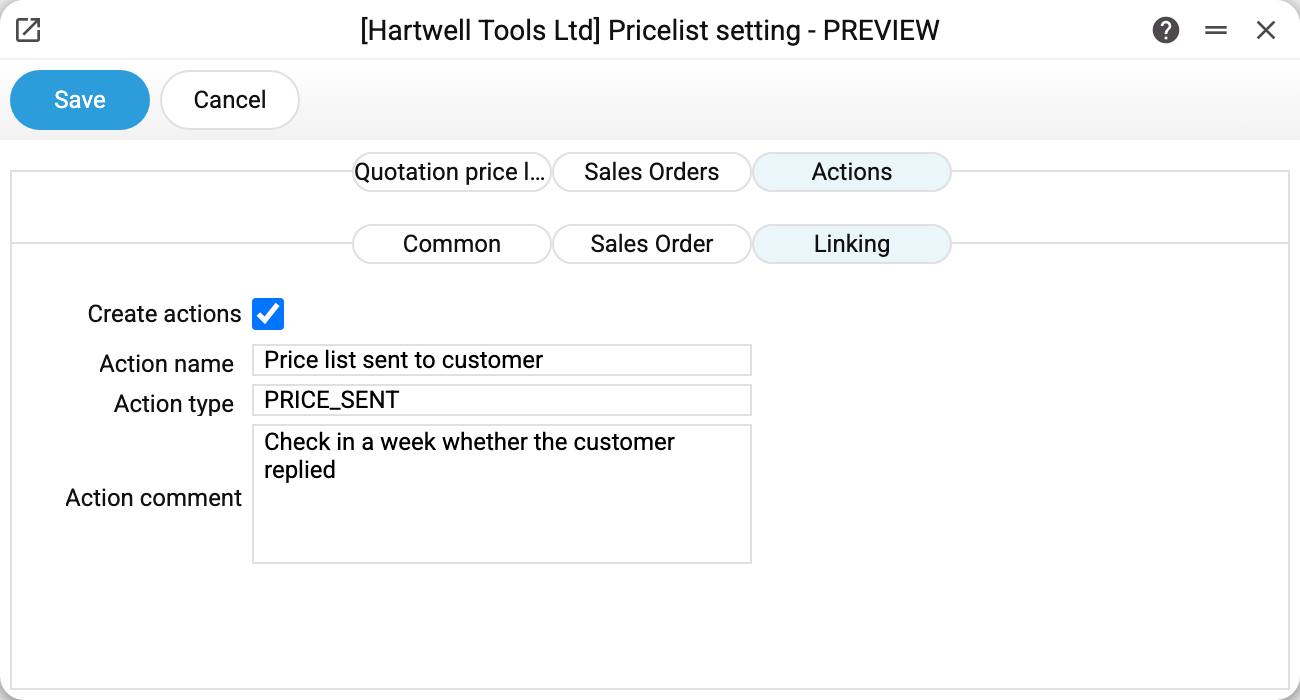
The "Actions" tab holds three sub-tabs, two of which describe different events:
- "Sales Order" — the customer placed an order on the price list page;
- "Linking" — the price list was linked to contacts with the "Link to contacts" menu item on the price list card (that is the screenshot above).
Linking sends nothing to the customer: it only connects the price list with the selected contacts (with "Update contact register" ticked it also writes the price list into their cards); passing the link on to the customer is up to you. A linking action is raised separately for each linked contact: link the price list to a category of thirty customers and you get thirty actions.
Both carry the same fields: "Create actions", "Action name", "Action type" from the types register and "Action comment" — the text the assignee will read. They are configured independently: you may create actions for incoming orders and none for linking.
Write the comment as an instruction ("call back, confirm the items and the date") rather than a description of the event — the assignee can already see where the action came from.
The first tab
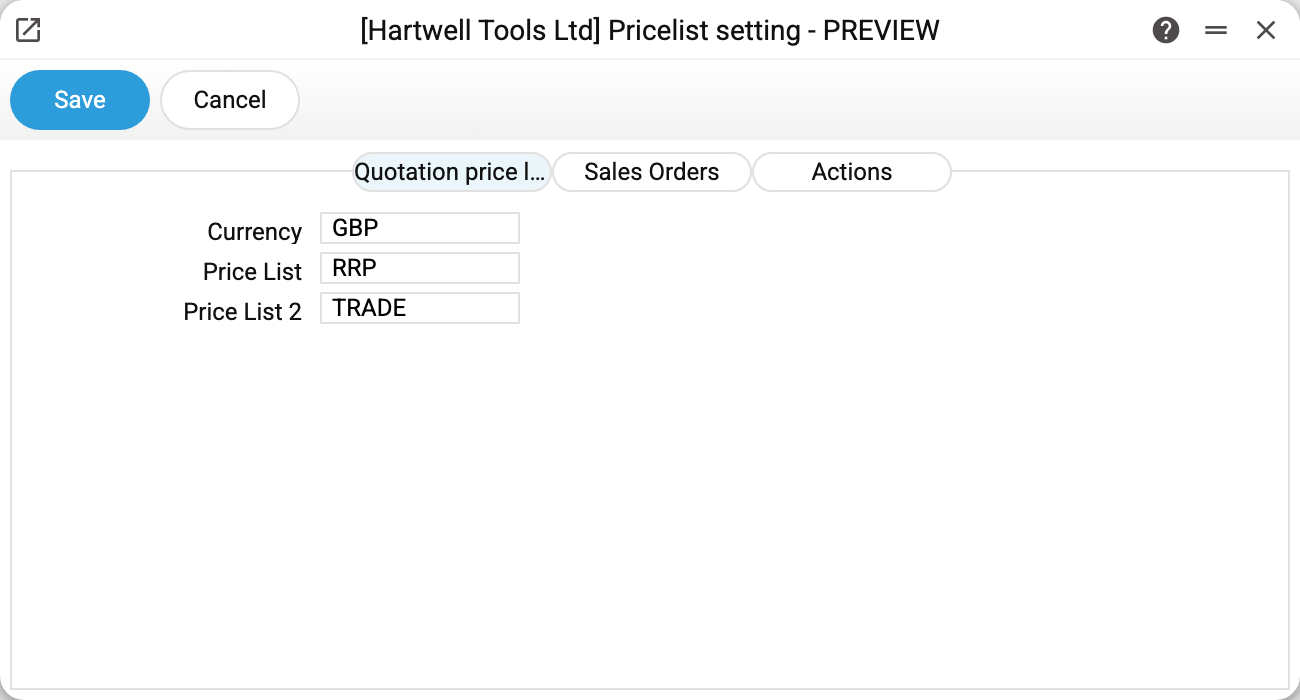
The currency and the two price lists on the first tab are defaults for new price lists: when a "Quotation price list" card is created, they are filled into empty fields. They do not affect the web page.
The page does not read price lists directly either: the prices on it and in the order come from the rows of the quotation price list itself. The card's "Price List" and "Price List 2" fill those rows when the price list is built or recalculated. Change a price in the price list and it reaches the page after a price list recalculation. The order takes the first price of the row; the second is only shown on the page as a separate column.
Parameters
| Tab | Parameter | What it does |
|---|---|---|
| Sales Orders | Sales order type | The type given to an order arriving from the web page |
| Sales Orders | Sales order dropshipping type | The type of an order where the buyer ticked «Дропшиппінг» |
| Actions → Common | Notification, Notification type | Whether to remind the assignee, and through which channel |
| Actions → Common | Manager from 'Quotation price lists', Manager from 'Contacts', Managers | Three sources of assignees, merged together |
| Actions → Sales Order | Create actions, name, type, comment | The action raised for a web order |
| Actions → Linking | Create actions, name, type, comment | An action for each contact the price list is linked to |
Typical situations
- Web orders arrive with no type. No type is set in this window. If "Require Order Class" is also on, the system substitutes the first type in the register — and reports can no longer tell web orders apart.
- No action appears at all. Check the "Create actions" flag on the right sub-tab ("Sales Order" or "Linking"). Then the logins: every assignee (from "Managers", the customer card and the price list card) must be a system user or an executor group code, and one unknown login breaks the whole action.
- The action is created but nobody is notified. The "Notification" flag is off: the action lands in the list silently.
- The wrong person gets the action. Check which of the three assignee sources are enabled: the manager on the customer card and the manager on the price list may be different people, and then both receive it.
- No action for linking. That is the separate "Linking" tab with its own "Create actions" flag.
Nearby
- Quotation price lists — the price list itself and the customer link
- Price list web view — what the page header looks like
- Sales orders setting — the neighbouring window: behaviour of the orders themselves
- Actions — where the created action lands
- Quotation price lists recalc — refreshing prices in the price lists