Invoice
A register of the invoices raised in a period: who, when, for what and for how much. In the detailed view each invoice opens up into its rows — items, quantity, price. It answers "what did we bill customers in December" and is the quickest way to find a document when the number is lost but the customer and the rough date are known.
Where to find it: Modules → Sales Ledger → Reports → Invoice
The menu entry is named like the document itself, so the two are easy to confuse: Invoices under "Registers" are the documents, while "Invoice" under "Reports" is the list of them.
A worked example
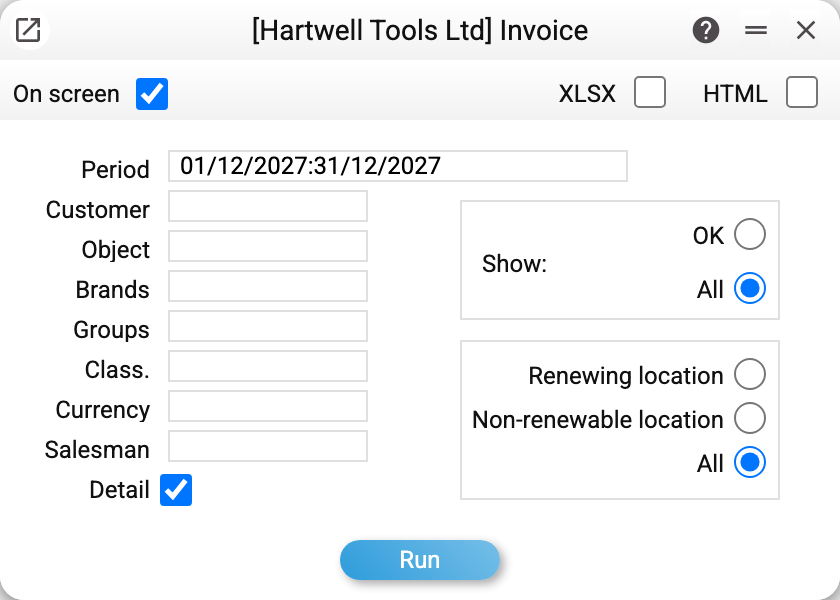
The period is December 2027, "Show: All" (approved documents and drafts alike), and the "Detail" box stays ticked.
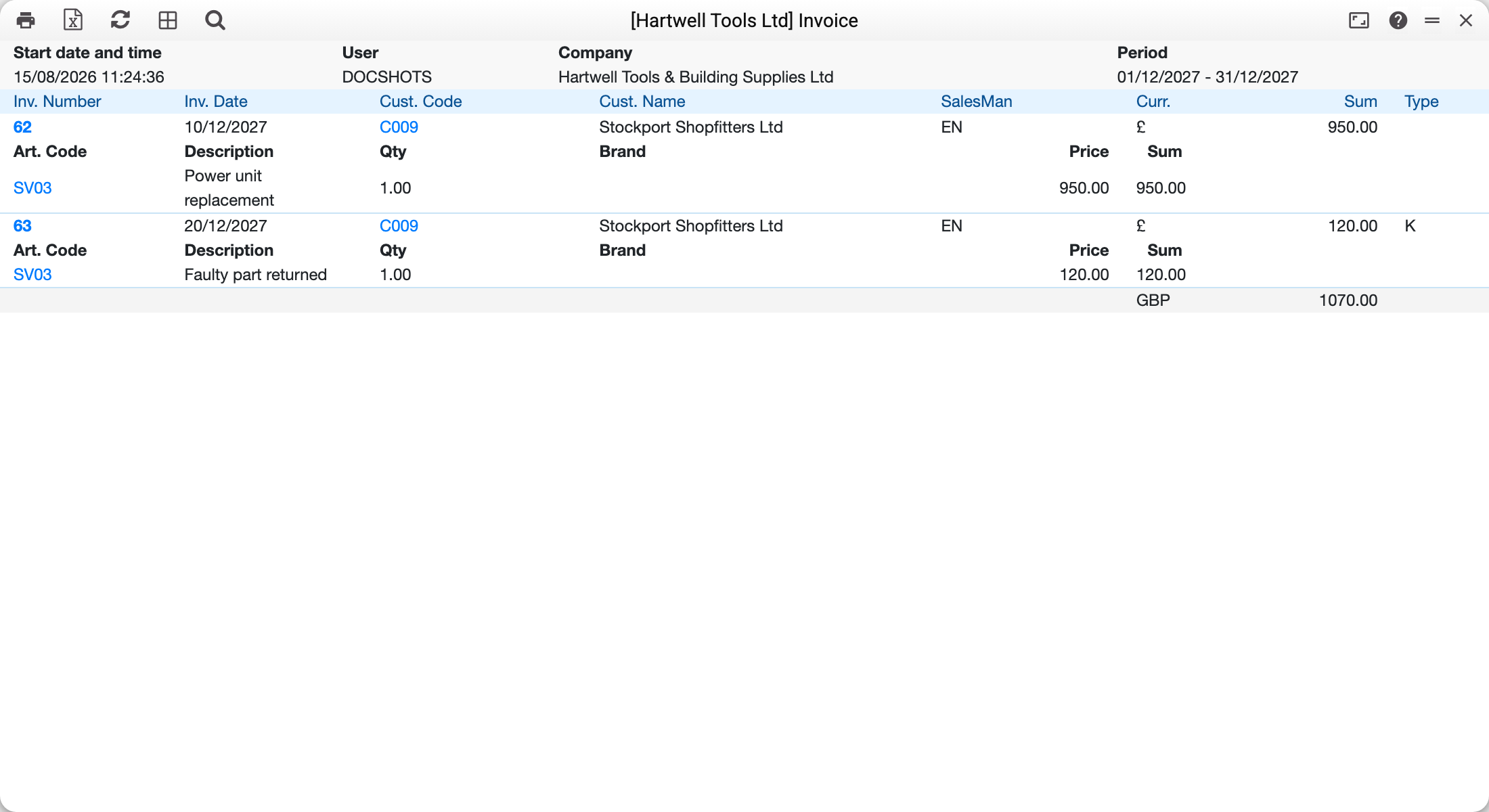
Two documents for the same customer:
- 62 of 10/12/2027 for £950.00 — an ordinary invoice, the row carrying service SV03 "Power unit replacement";
- 63 of 20/12/2027 for £120.00 with a "K" in the "Type" column — a credit note for the faulty part returned.
The "SalesMan" column shows the "Salesman" field of the invoice header, "Curr." its currency.
The total at the bottom is the same in both views. In the detailed view (the "Detail" checkbox) and in the short one alike there are three lines per currency: "Invoices (issued)" 950.00, "Credit notes" −120.00 and "Revenue" 830.00 — the footer adds up. The same goes for Excel. The shot above was taken before the footer was split into three lines.
Where the numbers come from
The invoice amount is the document total including VAT (the same figure as at the bottom of the invoice itself). With an item or object filter filled in, it is the total of the matching rows only (see below).
Type is blank for an ordinary invoice and "K" for a credit note. A cash invoice looks the same as an ordinary one in this column — you tell it apart by the payment method on the document.
The rows in the detailed view are the invoice's items with the row price and amount; the "Brand" column is filled only for items that carry a brand on their card.
The item filters (brand, group, classification) count the MATCHING ROWS; the "Object" filter works the same way (the row's object, or the header's when the row has none). An invoice is listed when at least one of its rows matches, and its "Sum" is the total of those rows including VAT, not of the whole document: a "group TVs" report on an invoice "TV 120 + phone 60" shows 120. The footer adds up the same amounts in both views; in the detailed view the rows under the invoice are exactly the ones its sum comes from. An invoice whose matching rows total 0 is not listed. When all rows match, the "Sum" is the same as on the document. Until 29.10.2026 the "Sum" stayed full under a filter — the total of the whole document — and the footer added up the sales of every item on such invoices.
The date. Selection goes by the invoice's operation date, while the "Inv. Date" column shows the invoice date — on an invoice where the two differ, the report shows a different date from the one it was selected by.
Drafts in the total. With "Show: All" unapproved invoices enter the footer too — the "Revenue" line included.
Parameters
| Parameter | What it does |
|---|---|
| Period | By the invoice's operation date (the "Oper. Date" field) |
| Customer | A single customer |
| Object | Filter by accounting object |
| Brands / Groups / Class. | Filter by the characteristics of the items in the rows |
| Currency | Keep invoices in one currency (or several, comma-separated) |
| Salesman | The "Salesman" field of the invoice header; several allowed, comma-separated |
| Show: OK / All | Approved documents only, or drafts as well |
| Renewing location / Non-renewable / All | By the "Update warehouse" flag on the invoice: the first keeps invoices with the flag (they take stock off themselves when approved), the second those without it (raised against goods already shipped) |
| Detail | With item rows, or headers only |
Common situations
You need to find an invoice and have no number. Set the period and the customer — the short list that comes back is easy to recognise by amount and date.
The report shows invoices the customer never saw. Switch "Show" to "OK": in "All" mode unapproved drafts are included.
It is unclear whether an invoice took goods off the shelf. Use the second group of radio buttons: "Renewing location" keeps invoices with the "Update warehouse" flag, which take stock off themselves (which happens when you sell without a shipment), "Non-renewable location" those written against goods already shipped. The flag moves nothing until the invoice is approved: with "Renewing location" and "All" in the "Show" group the report also lists drafts that have not touched stock yet. Whether a new invoice gets the flag straight away is decided by the invoice setting.
You need revenue rather than a list. Revenue including VAT is the "Revenue" line in the footer, in either view. For revenue net of VAT and profit use the sales report or the profit and loss report.