Buying/selling currency
The document for exchanging currency through a bank. A real currency purchase is not a single event but a process: you send money to the bank, the bank buys the currency and charges its commission, and the purchase lands on your currency account. Each of these steps has its own date and its own transaction — so the document consists of four stage blocks, each posted separately with its own "Make transactions" flag.
Where to find it: Modules → Nominal Ledger → Registers → Buying/selling currency
Walkthrough
Buying 1 000 EUR in the demo (the demo company keeps its books in GBP):
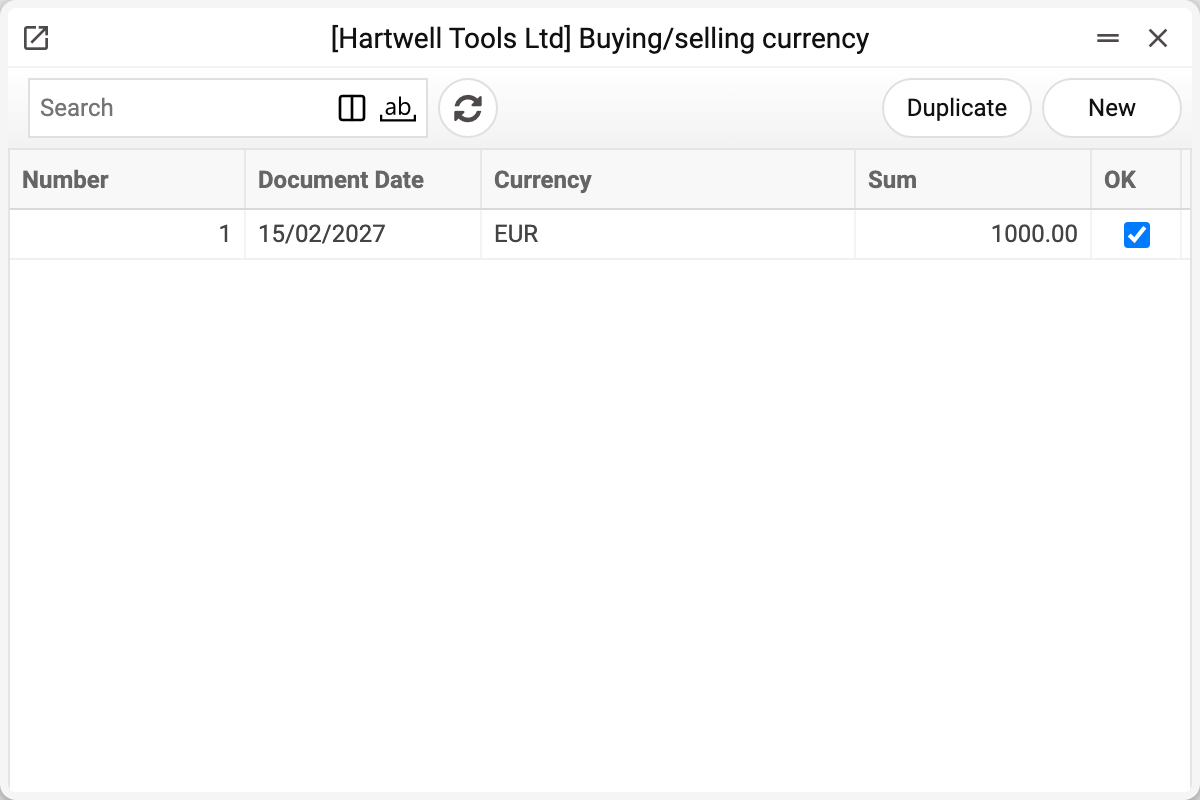
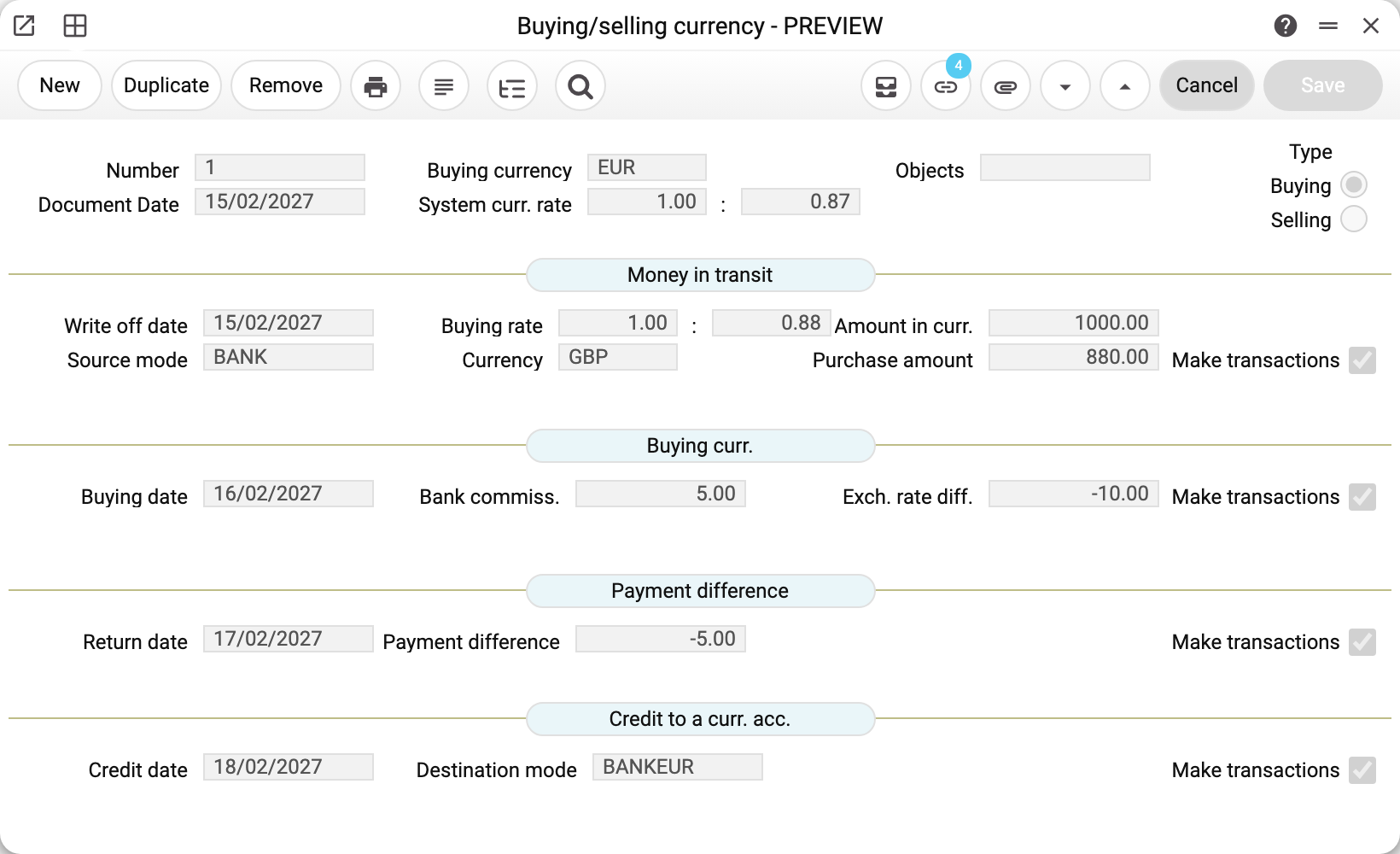
The header: the currency (Buying currency — EUR), the document date and the System curr. rate — the official rate from Exchange Rates for that date (0.87 here; filled in automatically). The Type switch — Buying or Selling. Objects — an analytics tag that goes into every transaction of the document.
Block by block:
- Money in transit (15/02) — the currency is ordered: to buy 1 000 EUR (Amount in curr.) at the deal rate of 0.88 (Buying rate), 880 GBP are sent to the bank (Purchase amount) via the BANK mode. The amount and the rate are linked: enter one and the other is recalculated. The bank takes exactly the cost of the currency at the deal rate, so the amount sent is that cost.
- Buying curr. (16/02) — the bank bought the currency and took a 5 GBP commission (Bank commiss.). Exch. rate diff. −10 is "870 at the system rate versus the actual 880": an overpayment against the official rate.
- Payment difference (17/02) — the commission the bank charged on top of the amount sent: the field is computed and on a purchase equals minus the commission, −5 GBP here. The stage date is labelled "Return date", but there is no remainder for the bank to return — it is the date the commission was charged.
- Credit to a curr. acc. (18/02) — 1 000 EUR landed on the currency account of the BANKEUR mode.
The stages and their transactions
Each stage is posted with the "Make transactions" flag of its block; the transaction date comes from that block's date field. Once posted, the stage's fields are locked; unticking the flag is a rollback — the stage's transaction is deleted. The order is strict: no purchase without an order, no crediting without a purchase.
After the last stage — "Credit to a curr. acc." — the whole document is locked: it cannot be edited in the window, through the API or by the AI agent. The type (buying or sale) and the number are locked even earlier — as soon as "Money in transit" is posted: the stage rollback finds its transaction by the number, and the type decides which transaction it looks for.
1. Money in transit — the money has left the account, but there is no currency yet:
| Dr | Cr | Amount |
|---|---|---|
| 333 (the "Currency ord." account) | 311 (the source mode's account) | 880 |
2. Buying currency — the currency is at the bank, not on your account yet. The purchase is booked at the system rate on the buying date (1 000 × 0.87 = 870), and the difference against the actual deal rate goes straight to the financial result:
| Dr | Cr | Amount |
|---|---|---|
| 334 (the "Currency buying" account) | 333 | 870 (1 000 EUR) |
| 942 (the "Exchange losses" account) | 333 | 10 |
| 921 (the "Bank fee" account) | 333 | 5 |
Had the bank bought below the system rate, the difference would be positive and go to the credit of the profit account (711 in the demo). Note these are the "currency trading" accounts 711/942, not the 714/945 pairs from the FX accounts settings — those serve debt revaluation.
3. Payment difference — the bank commission charged to the account (purchases only):
| Dr | Cr | Amount |
|---|---|---|
| 333 | 311 (the source mode's account) | 5 |
Account 333 is now closed to zero: 880 + 5 = 870 + 10 + 5. With no commission the difference is zero, and the stage posts without a transaction.
4. Credit to a currency account — the currency is on your account:
| Dr | Cr | Amount |
|---|---|---|
| 312 (the destination mode's account) | 334 | 870 (1 000 EUR) |
Account 334 is closed. In total: 1 000 EUR bought for 885 GBP (880 for the currency + 5 commission).
Selling
The same document with Type → Selling: you send currency, the bank sells it, base currency lands on your account. Field labels switch ("Curr. for sale", "Amount for which sell", "Sales rate", "Sale date"), and the "Payment difference" block is unavailable — a sale does not have it. The postings mirror the purchase, with accounts taken from the "Selling" column of the same settings tab (in the demo: currency sending — 334, selling — 333, the same difference and fee accounts).
Where the data comes from
- Stage accounts — Account Usage, the "Buying/selling currency" tab. The "Buying" column: "Currency ord." (333), "Currency buying" (334), "Exchange incomes" (711), "Exchange losses" (942), "Bank fee" (921); the "Selling" column: "Currency sending", "Currency selling" and the same difference/fee accounts. An empty required account blocks the stage. The "Buying" column accounts are checked on save (for a sale document too), and the message names the account; an empty "Selling" column account stops posting with the generic transaction refusal "Account field is required" — without naming the setting account.
- Money accounts — from payment methods (the Payment Methods setting): "Source mode" supplies the account the money leaves from, "Destination mode" — the target currency account. The mode must have its financial account filled in.
- System curr. rate — Exchange Rates: the latest rate dated no later than the document date (the purchase posting uses the buying date).
- The deal rate is not a register: the system derives it from the pair "Amount in curr." / "Purchase amount", and an entered rate recalculates the amount.
- Payment difference is computed: the "Purchase amount" minus the cost of the currency at the deal rate minus the commission. The amount is that cost, so on a purchase the difference equals minus the commission.
- The posting switch — the Records from Subsystems setting, "Cash and Other" tab, "Buying curr." checkbox (a sale has its own, "Selling curr."): when cleared, the document saves but generates no transactions at all.
Links to other documents
- From a posted foreign-currency purchase order, the document is created via the "Create buying/selling currency document" menu — the amount comes from the order's uncovered remainder.
- From the document itself, "Create payment / vendor payment" opens a new vendor payment in the bought currency for a purchase, filled from the purchase order the document was created from; without an order the payment opens empty — fill it in by hand. No payment is created for a sale: the document posts the sale itself.
- The document menu has one transaction item — "Open NL transaction of the order/send currency transaction" (F2): it opens the transactions of all posted stages at once — one window per stage. There are no separate menu items for the transaction of each stage. The document-tree button in the header shows all linked records.
Common situations
«First, place an order for currency (mark "Money on the way")!» An attempt to post a later stage before "Money in transit". Stages confirm strictly in order.
The flag is set, no transactions appear — and no error either. Check the switch: "Records from Subsystems" → "Cash and Other" → "Buying curr." (for a sale — "Selling curr."). When cleared, transaction generation for this document is off entirely.
"Fill in the 'Currency order' account…" and similar. The "Buying/selling currency" tab in the "Account Usage" setting is incomplete — the message names the missing account.
Need to fix a posted stage. Untick "Make transactions" on that stage (and every later one) — the postings are removed and the fields unlock. Correct and post again. Only a user with the "Can remove OK" right can untick "Credit to a curr. acc.".
"A posted document cannot be edited!" "Credit to a curr. acc." is confirmed, and after it the document cannot be edited — in the window, through the API or by the AI agent. Untick "Make transactions" on "Credit to a curr. acc.", correct and post again.
"A field that the ledger entry reversal uses cannot be changed in a posted document!" (or "A field that the ledger entry reversal uses cannot be changed together with unapproving!") The type or the number was changed while at least one stage is confirmed — or in the same save that removes a confirmation. Untick the stages and save the document first, then change the type or the number. In the window these fields are locked at that moment, so the message is seen mostly by the API and the AI agent.
"You cannot delete a confirmed document!" Only a document with no posted stages can be deleted: clear all the flags from the last to the first.
Is a positive exchange rate difference good or bad? Positive on a purchase means "bought below the official rate" — income (the profit account); negative is an overpayment — expense. For sales it is the reverse: positive means sold above the official rate.