Actions
The company's shared to-do list: call the customer back, drive out for a repair, agree an estimate, chase a payment. The same register holds what the system creates on its own — website bookings and the steps of service orders.
Where to find it: Modules → CRM → Registers → Actions
A task is not a note but a commitment with an owner and a deadline: it has executors, a date, a «completed» state and, where needed, the booked time of a particular technician.
A worked example
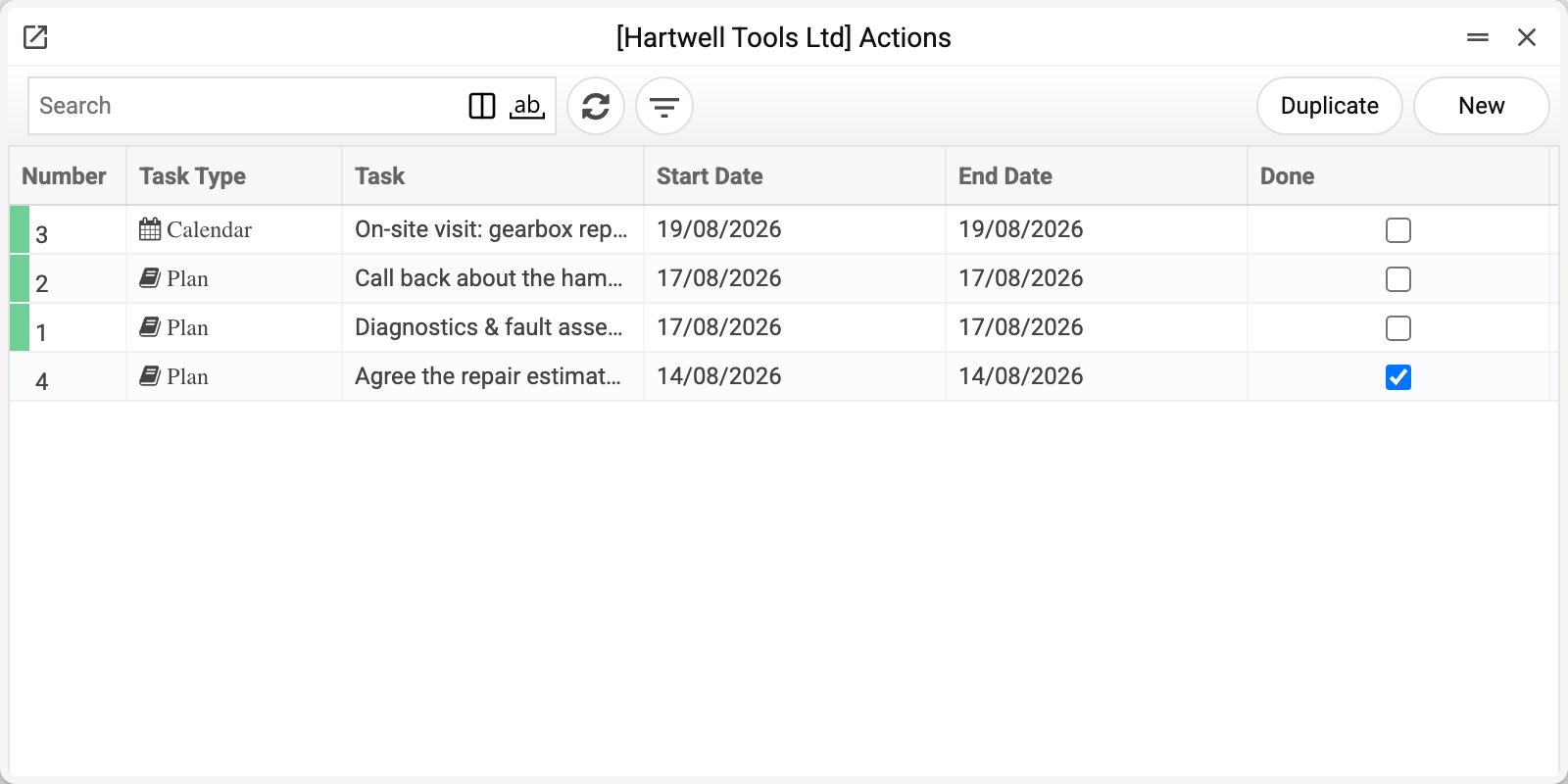
The list shows the number, task type, name, start and end dates and the completion mark. The filter button opens the selection: period, type, result, author, executor, state (all / completed / not completed) and the task-kind tick boxes.
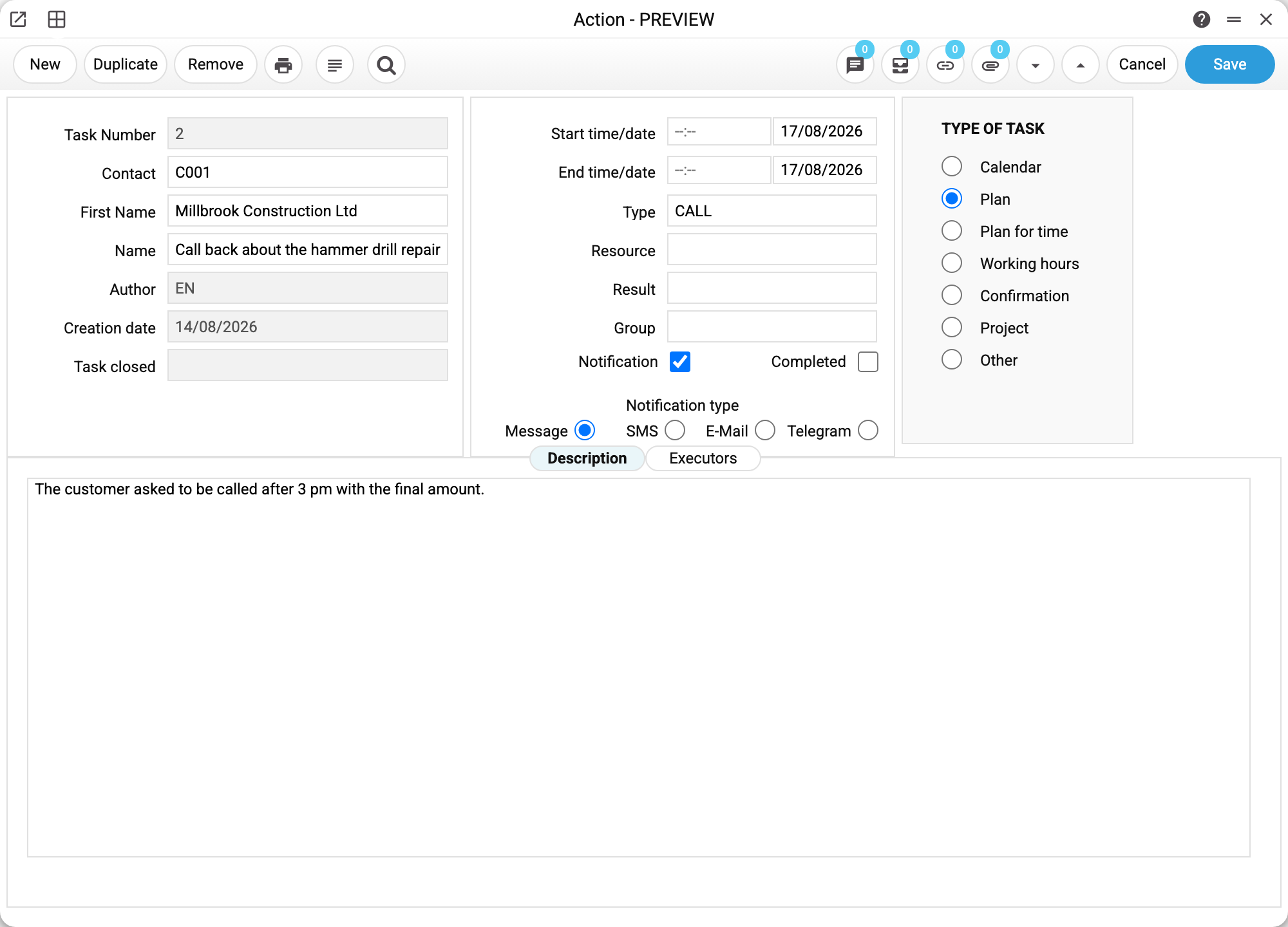
The open task «Call back about the hammer drill repair»:
| Field | What it means |
|---|---|
| Task number | Issued automatically |
| Contact | The customer the task is about; the name comes from their record |
| Name | Mandatory: this is what the list shows |
| Author, Creation date | Who raised the task and when; filled in automatically |
| Task closed | Who ticked «Completed» — filled in at the moment of closing |
| Start and end time/date | The deadline. The start date is mandatory |
| Type, Result | Values from the task types register |
| Resource | The technician or workplace whose time this task takes |
| Group | The task group used for reports and filtering |
| Notification + type | Who to tell and how: system message, SMS, e-mail, Telegram |
| Completed | The main state switch |
On the right is the task kind: «Calendar», «Plan», «Plan for time», «Working hours», «Confirmation», «Project», «Other». The kind is not cosmetic: it decides whether a resource can be attached to the task (only «Calendar» and «Plan») and whether the end date and time are entered in the card. A task gets into the resource calendar through its resource.
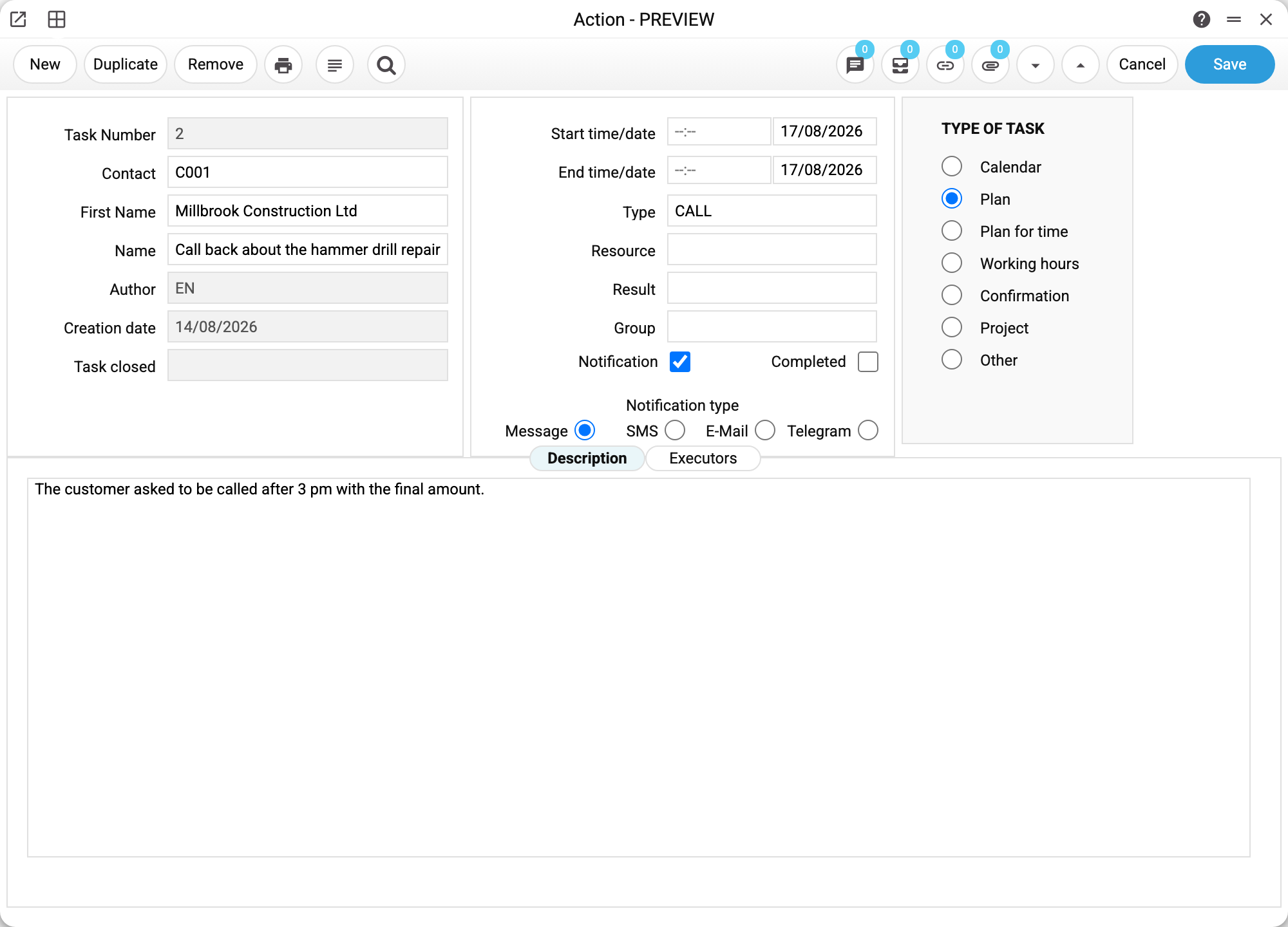
The «Description» tab is free text: the details, what was agreed, what exactly the customer said.
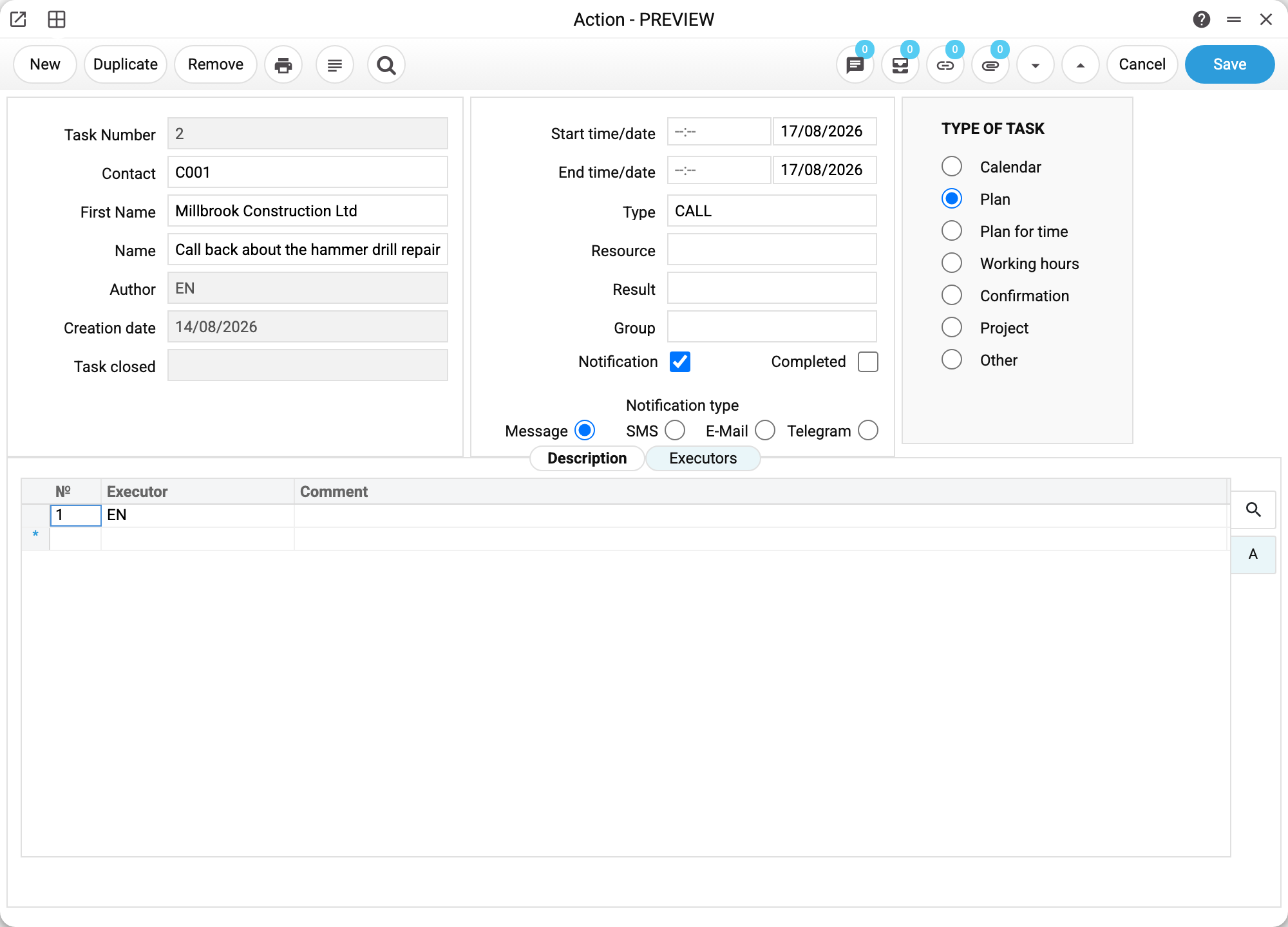
The «Executors» tab says who does the work. A row holds a user login or an executors group code; a group expands into the list of people. The same executor cannot appear twice. At least one row is required — otherwise there is nobody to do the task.
A task that books time
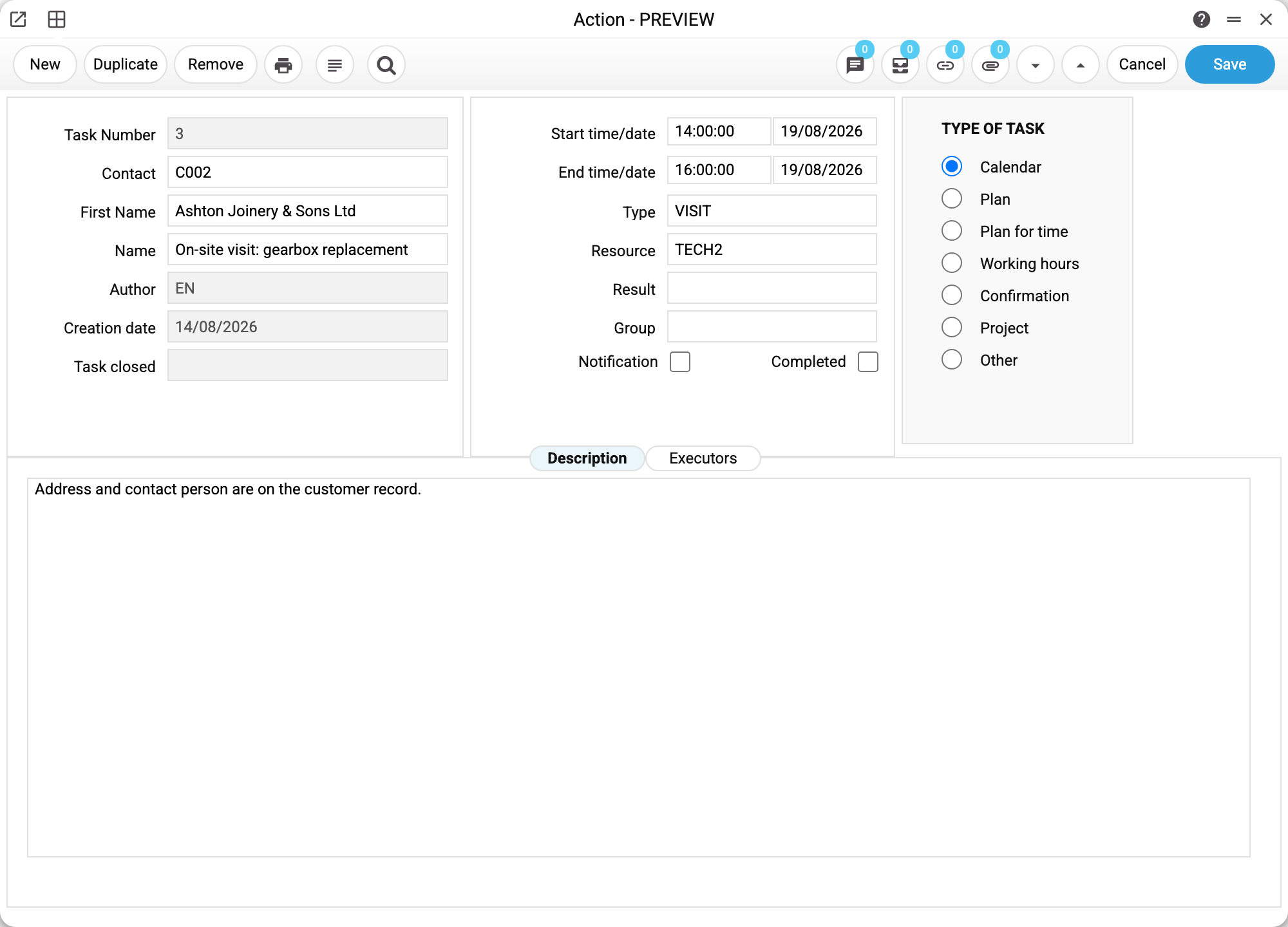
The same window, a different kind of task: an on-site visit on 19 August from 14:00 to 16:00, kind «Calendar», resource TECH2.
As soon as a task has a resource, it starts holding time: the system will not let you raise a second task for the same technician overlapping in time — «The resource is busy for the specified time!». Whole intervals are compared. The task being saved is checked only when its end date and end time are filled in (with a resource they are mandatory anyway). An existing task holds time as soon as it has an end date: without an end time its end counts as 00:00 of that date; without an end date it holds no time. Online booking sees the same time: busy hours disappear from the website.
Two restrictions come with a resource:
- the task kind can only be «Calendar» or «Plan»;
- a calendar task requires the end date and time — otherwise it is unknown how much time to book.
What is checked on saving
Mandatory: name, task kind, start date and at least one executor.
Dates must be consistent: the start date is not earlier than the creation date («The start date cannot be earlier than the creation date»), the end date is later than the start date.
Reference fields are validated: the type and the result must exist in task types, the contact in contacts, the group in task groups, the resource in resources. For the type, the result and the contact the error names the exact value that was not found; for the group and the resource it names only the field («Group not found», «The specified resource does not exist»).
The executor must exist as a user login or a group code: «Executor "SMITH" does not exist». A duplicate in the matrix gives «This executor is already used».
What «Completed» does
The tick does more than change the row colour:
- the «Task closed» field records who ticked it;
- if the end date and time are empty, they are filled in automatically — with the current ones, or with the task date when it lies in the future;
- the task leaves the «Not completed» selection and stops blocking online booking.
Who hears about the task
If «Notification» is ticked, every executor gets a message. The channel comes from the «Notification type» switch, but the system checks whether there is anywhere to send it: the user needs a phone for SMS, an e-mail address for mail, a linked Telegram for Telegram. If the required contact is missing, then on creating the task this executor gets no message, and on changing the task (executors, name, description, type, start date or time, notification type) the system tries the other channels — Telegram, system message, e-mail, SMS.
Only those allowed to see tasks get notified: a user without the right to this register receives nothing.
Where tasks come from
| Source | What is created |
|---|---|
| By hand | Any piece of work: a call, a visit, a reminder |
| Online booking | One task per resource: day, time, service, customer |
| Service orders | A step per order state — see the automatic tasks setup |
| Approval rules | A task for the approver when a document is submitted for approval; only the approver may change it, and such a task cannot be created by hand |
| Reminder services | A birthday greeting for an employee, for example |
Typical situations
«The resource is busy» although the calendar looks empty. Look for a not completed task of that resource in the task list (the «Not completed» selection): the time of every not completed task of the resource that has an end date counts as busy (without an end time — up to 00:00 of that date). Completed tasks free the time up — just as in online booking — and tasks of a type with the «Does not occupy the resource» tick in task types hold no time. Touching boundaries is not a conflict: 10:00–11:00 and 11:00–12:00 coexist.
The task will not save: «The start date cannot be earlier than the creation date». This happens when work is entered after the fact. The creation date cannot be changed — raise the task with today's date and put the actual date in the description.
The notification never arrived. Three reasons, most common first: the «Notification» box is not ticked; the user has no matching contact filled in (phone, e-mail, Telegram); the user has no right to the tasks register.
An executors group in a row. That is fine: a group code can go into the matrix instead of listing everyone — the system expands it into the list of people itself.
Print variables
Values available in this document's printed form templates. How to write a variable in a template — see Print Forms.
Header fields:
| Variable | What it holds |
|---|---|
| Actions_Comment | Comment |
| Actions_Task_number | Task Number |
| Actions_Name | Name |
| Actions_Author | Author |
| Actions_Creation_date | Creation date |
| Actions_Task_closed | Task closed |
| Actions_Completed | Completed |
| Actions_End_date | End time/date |
| Actions_End_time | End time/date 2 |
| Actions_Type_of_task | TYPE OF TASK |
| Actions_Start_Time | Start time/date |
| Actions_Notification | Notification |
| Actions_Start_Date | Start time/date — "Start Date" field |
| Actions_Notification_type | Alert Type |
Row fields:
| Variable | What it holds |
|---|---|
| Actions_MNo | Row position number |
| Actions_Executor | Task assignees |
| Actions_FullName | Task row text |