Reporting Period
Rather than typing "from" and "to" every time, periods are defined once and then picked by code. In most reports the period field takes exactly that code and fills the dates in for you.
Where to find it: Modules → System → Settings → Reporting Period
A worked example
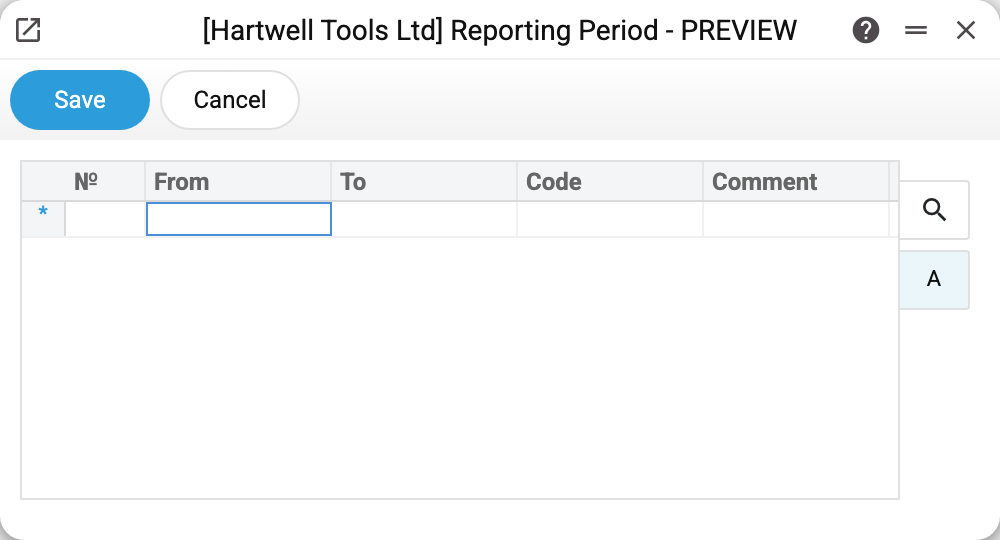
One table, one row per period: whole years (2026, 2025) alongside individual months (08/23, 03/23). Two levels of detail in the same list is normal — the register is open, and it holds the periods people actually use.
Where it takes effect
In report parameters: the "Period" field references this register. Pick a code and the dates appear; typing the dates by hand still works, nothing is forbidden.
The "Period" field of five services takes a code the same way: Export archive for Medok and Contract billing — here the code can also be picked from a list — as well as "Close Cost Price Difference", Checkbox Receipts Import and Vchasno.Kasa Receipts Import, where the code is only typed.
What you type in the field is first looked up among the codes and only then read as dates. So a code that looks like a date wins: with the example's row "2026", typing 2026 gives the whole year, while without such a row the field would read the same number as a date.
With a day-first date format you can leave out the end year — the field takes the start year: 01.09.2025-30.09 is September 2025. The field takes the next year only when the end month is earlier than the start month, that is, when the period crosses New Year: 15.12.2025-15.01 runs to 15.01.2026.
The code is matched exactly, case-sensitively. In this table a code is turned into capitals as you type it, but the report field does not convert what you type: type a code with letters in capitals or pick it from the list.
The benefit is threefold: no mistyped dates, everybody naming periods the same way, and quick switching between years.
Which period a report opens with
A report window opens with the period of the first row of this table — the same for every user and every report. No rows — the current month.
If another period suits you better for a particular report (say, you always look at it for the whole year), you can remember it for yourself. In the report window set the period you want, open the window menu (the button on the left of the window header) and choose "Remember the period for this report". From then on that report opens with it for you; other users and other reports are not affected.
- Picked the period by code from this table — the code is remembered and the dates are taken from here every time: change the row's dates and the report opens with the new ones.
- Typed dates — the dates themselves are remembered.
- "Reset the remembered period" in the same menu takes the report back to the general period.
- If the report is opened from a document or from the dashboard with a period already set, that period applies.
Typical situations
A new year is needed. Add a row with the year as its code — it shows up in report lookups straight away.
Periods overlap. That is not an error: a year and a month inside it are a normal pair.
Two rows with the same code. The program does not forbid it, but a report given that code takes the dates of either of them — you cannot tell in advance which. Keep codes unique.
A report won't accept the code. Check the period exists in this company and that the code is typed with the same letters: a code typed in lower case is not found while the table holds it in capitals.
A report won't run: "Period … is not recognized". The period field holds text it could not read: a letter, an extra part or a typo. The field keeps what was typed and is highlighted, and the report is not built, so that it is not silently calculated for a different period. Enter dates (for example 01.09.2026:30.09.2026), one or two days of the current month (5 or 5 20) or a code from this table. The field reads one or two numbers as days of the month only when your date format puts the day first (01.09.2026); with the year first (2026-09-01) the number 5 means the year 2005.
A report opens for you with a different period than for your colleagues. You have probably remembered your own period for it — choose "Reset the remembered period" in the window menu. If the remembered code does not exist in this company, the report opens with the general period.
Where to look next
- Change lock — the other setting built around dates.