Binotel Phones
A mapping table: which extension belongs to which ERP user. Without it a call from the system never leaves — it does not know which handset to dial from.
Where to find it: Modules → Telephony → Settings → Binotel Phones
A worked example
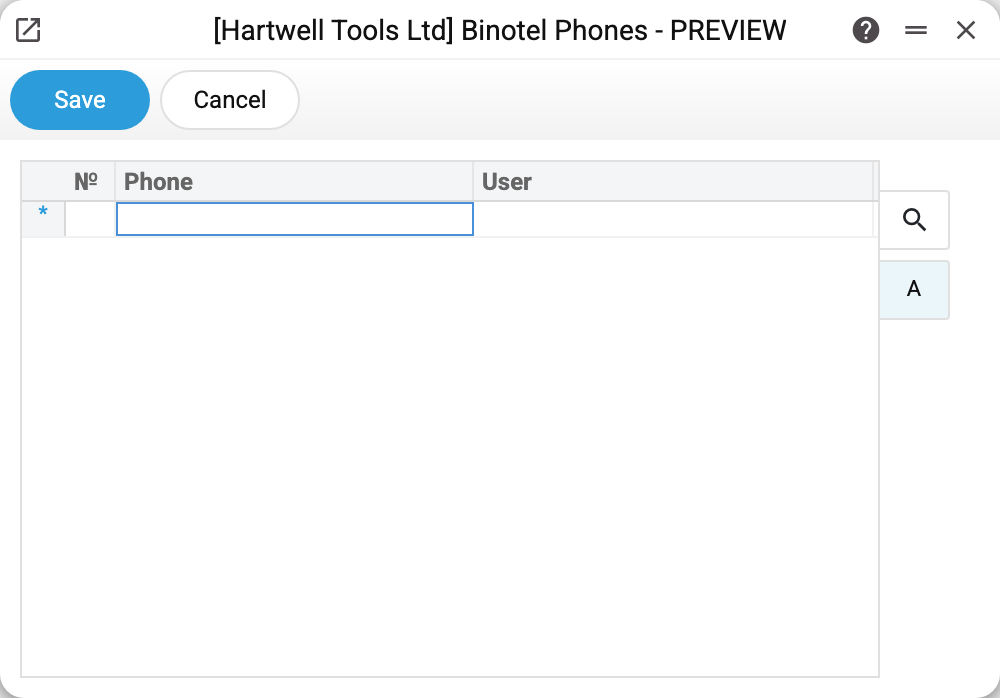
Two columns and nothing else:
| Phone | User |
|---|---|
| Binotel extension | ERP login |
In the demo company the table is empty — telephony is not connected.
How the system reads this table
When a user places a call, the system looks for a row by their login and takes the extension from it. If there is no row the call does not happen and you see a message that the user has no internal Binotel phone and that the user-to-phone mapping should be checked.
One detail matters: the user's top row in the table wins. If a person has several numbers, the call goes from whichever sits higher in the table — keep the right one on top. An empty Phone in the top row gives the same error even if a lower row of that login has a number.
The system looks the login up exactly as it is written for the user and does not check on saving that such a user exists — pick the user from the list in the column.
Typical situations
Someone moved desk and extension. Edit the row: past calls stay in the log and new ones go from the new handset.
One handset shared by several people. Add a separate row per login with the same number, so the system knows each of them.
The "no internal phone" error. Check that the User column holds the ERP login, not a surname or an employee code, and that the top row of that login has a phone.
An employee has left. The system will not delete a user bound in this table — it advises closing the user instead. The row of a closed user stays: remove it when the number passes to someone else.
Where to look next
- Binotel Connection — the connection to the service.
- Binotel Log — which calls Binotel answered, from whom, and what exactly.