Payment calendar
Will there be enough money over the coming weeks — and if not, exactly when will it run short. The report takes the money you have now, adds everything that is due to come in, subtracts everything that is due to go out, and shows the balance for every day: the lowest balance, the cash gap and what will be left at the end of the period.
Where to find it: Modules → Cash Book (also in modules: Nominal Ledger) → Reports → Payment calendar
Where the report takes its amounts from:
- money now — balances of the accounts set in payment modes, by the same rule as the dashboard tile "Money on accounts": the numbers match;
- what comes in — unpaid customer invoices, each on its own due date;
- what goes out — unpaid vendor invoices, also by due date;
- planned payments — money without a document: rent, salaries, taxes, a client's subscription fee (Planned payments).
If a customer is going to pay not on the due date but later, nothing needs to change in the invoice: set an expected payment date, and the calendar puts the invoice on that date.
Advances. Money a customer paid in advance is already on the account — it is part of "Money now". So while an advance is open (not yet allocated to invoices), the calendar reduces the same customer's unpaid invoices by it, starting from the earliest due date: overdue invoices first, equal due dates by number. An invoice covered in full disappears from the report; one covered in part is shown with the remainder and the note "less advance …". Advances to vendors reduce those vendors' invoices in the same way. Under the summary the report states in one line how much debt the advances covered and how many invoices in full.
All advances of one counterparty are added together, regardless of the order they were paid for; amounts are in the base currency, as for invoices. An advance does not reduce credit notes or invoices marked "Do not count in the payment calendar" — it moves on to the next invoice. An advance larger than all of the counterparty's invoices simply stays in "Money now". An advance does not reduce planned payments.
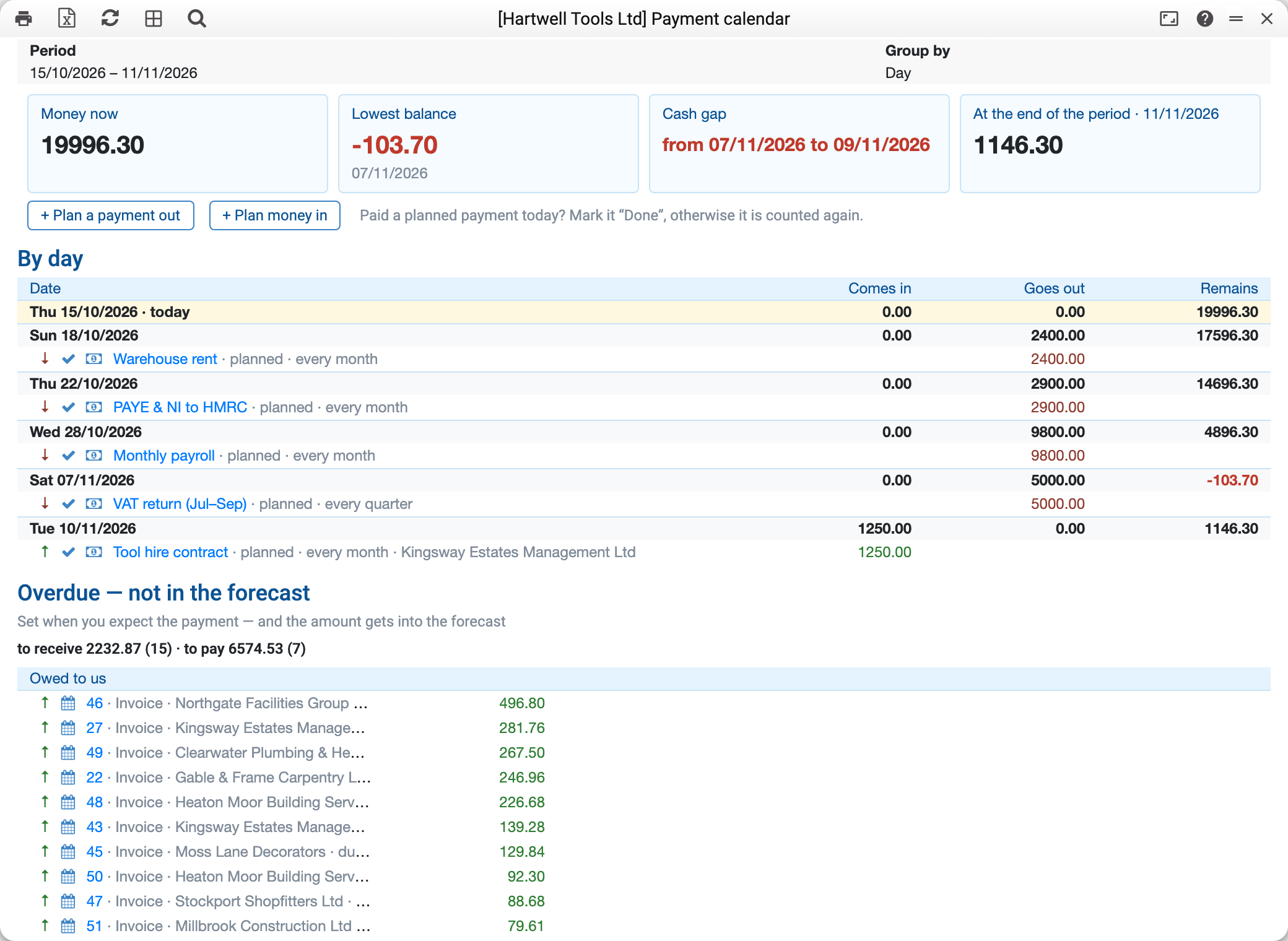
How to read the report
At the top — four numbers that show the main thing:
- "Money now" — how much money is on the accounts today. At the bottom of the report it is broken down by account in the "Money now by account" block. If no payment mode has an account, the card says instead of an amount that the money is unknown and where to set the account; until then the forecast starts from zero.
- "Lowest balance" — the smallest end-of-day balance from today to the end of the period, with its date. Below zero — red.
- "Cash gap" — the days when the balance is below zero: "from 02/11/2026 to 05/11/2026". If the gap does not close before the end of the period — "from 02/11/2026 to the end of the period"; if there are several gaps — each on its own line, up to three, and the rest as a line "and 2 more". None — "No cash gap".
- "At the end of the period" — how much will be left on the last day.
The lowest balance and the gap are counted by day, even when the report shows weeks or months: a week that ends in the black does not hide a minus on Wednesday.
"By day" — a line for every day when something comes in or goes out: "Comes in", "Goes out" and "Remains" at the end of the day. Days with no movement are not shown; the first day of the period (usually today) always is. Under the day line — what it is made of: arrow ↑ — money comes in, ↓ — goes out; the document number or the planned payment's description, the contact and the due date. Clicking the number opens the document.
When a day has many payments, it folds: more than seven lines — the five largest are shown, and below them a line "14 more: in …, out … — show". Clicking it unfolds the rest.
"Overdue — not in the forecast" — invoices whose due date has already passed, separately: "Owed to us" and "We owe". They are left out of the forecast on purpose: nobody knows when a customer who is already late will pay, and an amount "for today" would draw money that is not there. If you know when to expect the payment, set the expected date (below), and the invoice returns to the forecast on that day.
The total "to receive … · to pay …" stands right under the block's heading. When there are many overdue invoices, each group shows the ten largest, and the rest are folded into a line "37 more for … — show".
Planned payments whose date has passed but which were not marked done land here too — for the last 90 days.
"Money now by account" — at the bottom of the report: every account, which payment modes are set to it and how much is on it. A red balance with an exclamation mark means more went out of the account than came in: most often some receipt has not been entered in the system.
Actions right from the line
The report lines carry icons — so you do not have to look for the document in journals:
- the calendar icon on an invoice line opens the "Expected payment date" window (for a vendor invoice — "We plan to pay"). Set when you really expect the money or plan to pay (or tick "Do not count in the payment calendar"), save — and the report rebuilds itself. The invoice and its due date do not change.
- the ✓ icon "Done: paid" on a planned payment line — the payment for that day has been made. The system asks first: the mark is set "through the date, inclusive", so earlier repetitions that are not marked yet disappear together with this one. Later repetitions stay. The report rebuilds itself. If the payment is already marked through this date or a later one (for example, in another calendar window), there is no question: the system says through which date it is already marked and refreshes the report.
- the money icon "Create a cash payment…" (on planned money in — "Create a cash receipt…") opens a new Cash Out or Cash In document already filled in from the planned payment: payment mode (and with it the currency and rate), item, amount, a comment with the planned payment's number, description and the date of the repetition, and the planned payment's number in the "Planned payment" field. The document is not saved yet — check it and save it yourself; once saved, it is linked to the planned payment (the link shows under the chain button in both). The amount is left empty if the payment mode is in another currency (a planned payment is kept in the base currency — enter the amount in the payment mode's currency) or the planned payment has no payment mode (choose it and enter the amount); the hint names the planned amount. Mark the planned payment "Done: paid" separately.
- "+ Plan money in" and "+ Plan a payment out" under the summary open a new planned payment with the type already set.
Paid a planned payment today? Mark it "Done", otherwise it is counted again: the money has already left the account, and the calendar would subtract it a second time.
Typical situations
A customer warned they will pay two weeks late. The calendar icon on their invoice line → expected date → save. The invoice moves to the new date, the due date in the invoice itself stays as agreed — and the overdue reports keep showing it honestly.
The invoice is disputed; we do not expect money for it. The same window, the tick "Do not count in the payment calendar" with no date. The invoice disappears from the calendar but stays open in settlements. Under the summary the report states in one line how many such invoices there are and for what amount, so that marked invoices do not vanish unnoticed.
"Money now" does not match the bank. The report counts the accounts set in payment modes. If an account is not there, its balance is not part of "money now"; if some receipt has not been entered, the balance will be lower than in the bank.
Rent is shown although it has been paid. The money left with a payment or a cash order, but the planned payment does not know about it: even a cash document created from it with the money icon does not mark it paid. Mark it "Done" with the ✓ icon.
Amounts in a foreign currency. Invoices in a foreign currency are shown in the company's base currency — the same as in settlements. A planned payment's amount is entered in the base currency.
Parameters
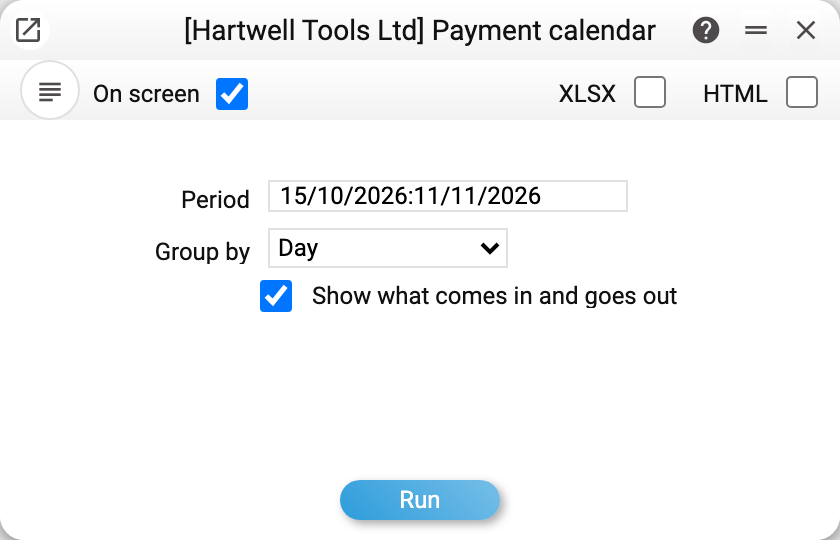
| Parameter | What it does |
|---|---|
| Period | Which days to show. By default — from today for four weeks. The report does not accept a period that has already ended: the calendar shows what lies ahead. A period that started in the past is shown from today — the header shows the start date. |
| Group by | "Day", "Week" or "Month". For a week or a month a "Lowest in the step" column appears — the smallest balance inside the step, with its date. A month the period covers only in part is labelled with dates: "November 2026 (01/11/2026 – 09/11/2026)". |
| Show what comes in and goes out | Break each step down to documents and planned payments. Without the tick — step totals only. |
If the period starts later than today, everything that comes in and goes out before it starts is counted in the balance and shown as a single line "Before the period starts: in …, out …".
The Excel button exports the same blocks; the amounts there are numbers that can be summed.