Production orders
A production order is a plan: how many units to make, against which technological map, at which location. It moves no stock and posts nothing to the ledger; its job is to record the intent and show what the intent will cost.
Where to find it: Modules → Production → Registers → Production orders
A worked example
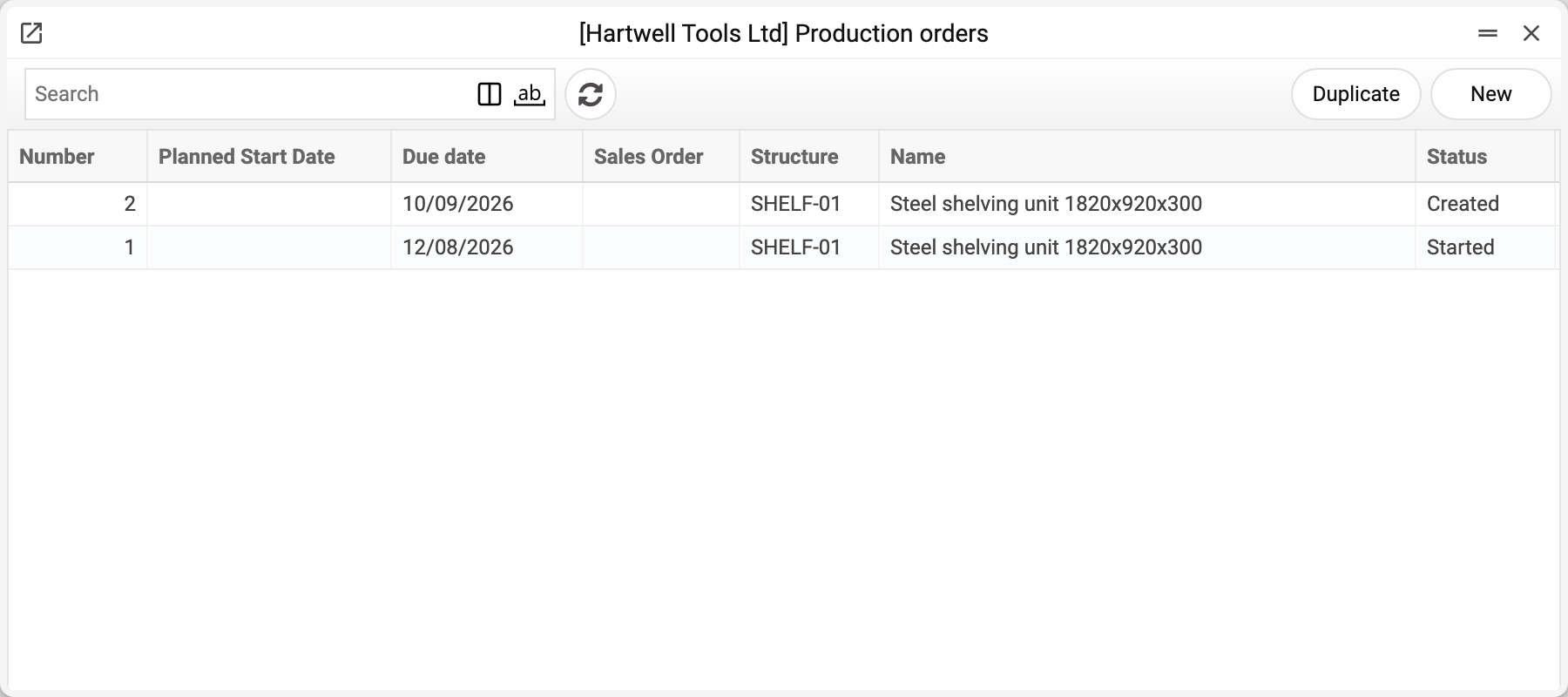
The journal shows the number, planned start date, structure, item name and status. There is one order here — No. 1, «Started», and that is the one we take.
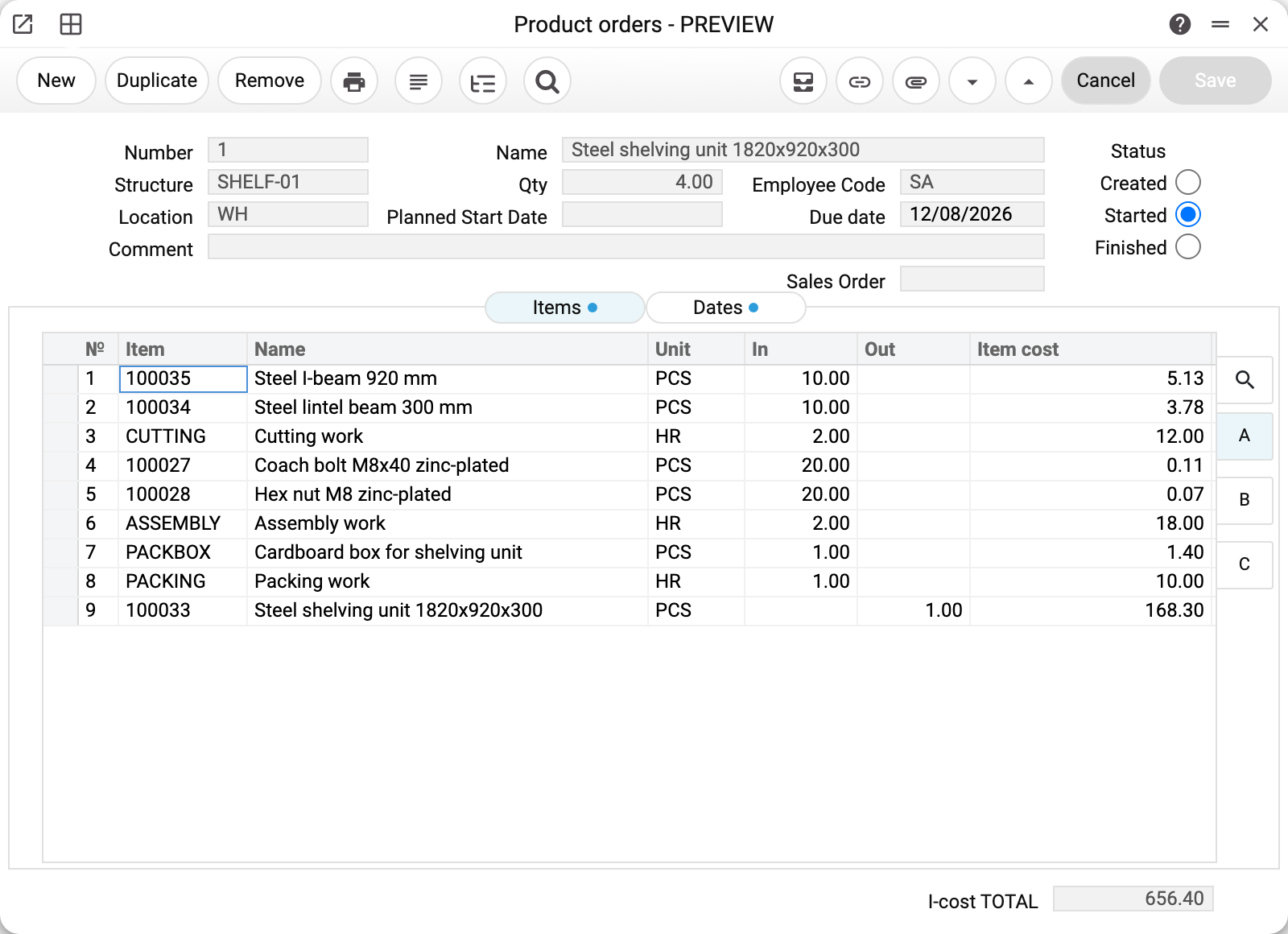
Order No. 1: structure SHELF-01, quantity 4, location WH, employee SA.
The "Items" matrix is the technological map unfolded into a document: the same nine rows, the same per-unit quantities. The header quantity acts as a multiplier: I-cost TOTAL 656.40 is the per-unit consumption times four.
On the right are three status switches: Created · Started · Finished. They are usually left alone — the status moves on its own as production against the order is started and finished (a production with stages is finished by its last operation — see production operations); a production that is created but not started does not move it. The switch is open to manual changes, but the system will not return the order to Created while one of its productions is started ("Production has started, it is not possible to return the "Created" status") or all of them are finished ("The production is completed, it is not possible to return the "Created" status"). Here it reads "Started": part of the order has been made.
The planned start is set in the header — the "Planned Start Date" field, which the shop floor goes by when sequencing work. The second tab, "Dates", shows the order's date of creation and the actual production start and end dates: the system sets them when the status becomes "Started" and "Finished", and they cannot be edited by hand. The "Due date" field in the header is the date by which the order must be done; in an order created from a sales order it is taken from the sales order's planned ship date, and the "Sales Order" field shows that sales order's number.
From a sales order
An order does not have to be typed in by hand: the sales order menu command "Create Production Orders" makes a separate order for every row whose item has a technological map (the "Tech. map" field on the item card); if the map contains an item with a serial number per unit, there is one order per unit. Rows without a map — services, goods for resale — are skipped.
- Quantity — from the sales order row, in map runs: if the map outputs 2 pieces per run, a row of 10 pieces gets an order for 5.
- Due date — the sales order's planned ship date; the location is the row's location, or the sales order's if the row has none.
- Running it again creates no duplicates: orders carrying this sales order's number for the same map already cover the row. If the quantity in the sales order went up, the command creates an order only for the difference; if everything is covered, it says the orders have already been created.
The sales order and the orders created from it are linked: each shows in the other's document tree. The sales order command "Production status" shows the stage of production for that sales order — it is the production orders list for that sales order only: each order's status, the ordered and the produced quantity.
How it relates to production
The order produces nothing by itself. A production document is raised against it, and that document consumes the materials. It is raised from the order itself: the "Create Productions" menu command takes the remainder — the ordered quantity minus what productions have already been created for, including ones not yet started; whatever was disassembled from them goes back into the remainder (for a serial-numbered item, a separate document per unit). The link is the "Production Order" field on the production document, which carries the order number.
One order can have several production documents: four units ordered, one made first and three later means two production documents sharing an order number. The order status moves from "Started" to "Finished" along the way.
Typical situations
There isn't enough material. The order is created anyway — it is a plan. The shortfall shows up in the deficit report, and you hit it when you book production.
The material list needs changing for this order only. Edit the rows on the order; the map stays untouched.
The quantity is not a multiple of the production norm. The system warns you, but does not block — the call is yours.
An order was closed by mistake. The status steps back when the production document that closed it is un-booked.
Where to look next
- Technological map — where the order's rows come from.
- Production — the document that fulfils the order.
- Product orders deficit — what the plan is short of.
Print variables
Values available in this document's printed form templates. How to write a variable in a template — see Print Forms.
Header fields:
| Variable | What it holds |
|---|---|
| Number | Number |
| Structure | Structure |
| Location | Warehouse |
| Comment_full | Comment |
| Str_name | Name |
| Q-ty | Qty |
| Start_date | Planned Start Date |
| Employee_code | Employee Code |
| I-cost_TOTAL | Total item cost |
Row fields:
| Variable | What it holds |
|---|---|
| No | Row position number |
| Item_Code | Item |
| Description | Name |
| In_Qty | In |
| Out_Qty | Out |
| ItemCost | Item cost |
| Objects | Objects |
The records the document refers to through its form fields (location, customer, currency…) also expose the rest of their variables — code and name are already listed in the tables above, the rest is described in the register's article:
- Company details — name, addresses, bank accounts, officers, the printing user: Main Company