Product sets
A drill, safety glasses and gloves are sold together at a single price. The system has a set for that — an item card that never sits in the warehouse itself but lists what it is made of. The set is sold as one line, and three items leave the stock.
The confusion starts where this is not known: a set has no stock balance of its own. It does not appear in the stock register at all, nor in item history. Every quantity is counted on the components — and that is exactly why "receiving a set" and "selling a set" work differently.
Creating a set
A set lives in the item card.
- New item, then the "Set" checkbox in the header.
- The product type (the "Price" tab) must be "Free". Otherwise, on save: The type of set must be "Free"!
- The "Item Sets" tab — the composition rows: item code and quantity per one set.
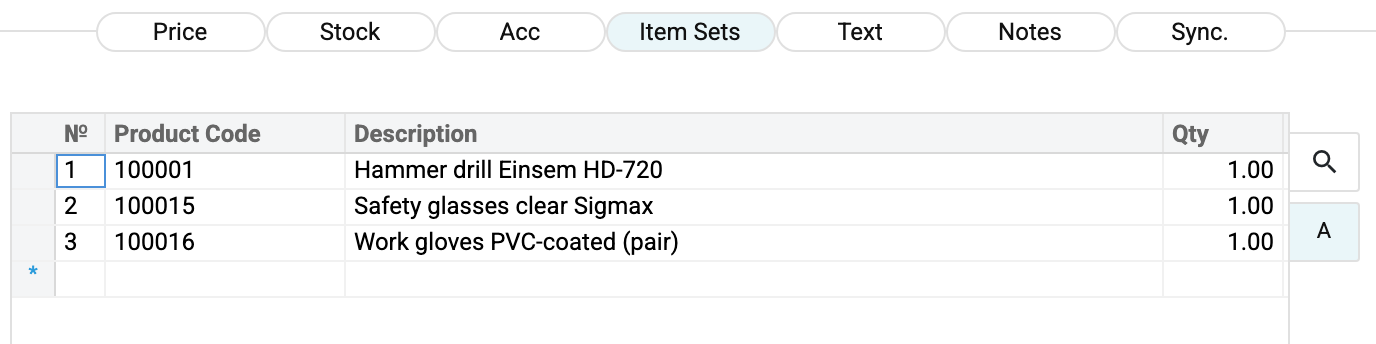
The price of a set is set like the price of any item — in the card or in a price list. It is only needed in one of the two selling routes described below.
Three rules people run into most often:
| Rule | Message if broken |
|---|---|
| Matrix filled — tick the "Set" checkbox | When the matrix of sets is filled, the Set checkbox should be checked! |
| A set made of sets cannot be assembled | You cannot select a set in the set matrix! |
| The type of an item already used in sets cannot be changed | You cannot change item type if it is used in sets! |
Selling: two different routes
The routes are not interchangeable — they answer different questions.
Route 1: the set as a line of its own
In the invoice you put the set code and the set price. One line, one price.
What the system does on approval: it writes off the components, each in the quantity "how many in the set × how many sets". Sell one set and the drill, the glasses and the gloves each leave the warehouse once, with the cost taken per component. Only stocked components move: a service inside a set moves no stock, just like the set itself.
Before approval it is the components' balance that is checked, not the set's. If something is short: Not enough product "100001" in stock!
Use this when the set is a product of its own with its own price — usually better than the sum of its parts.
Route 2: assembling a set out of the invoice lines
The other way round: the invoice lists ordinary items, and the set is assembled out of them — for the printed form.
Invoice card menu (the button with the bars) → "Create product bundles". The "Create sets" window opens:
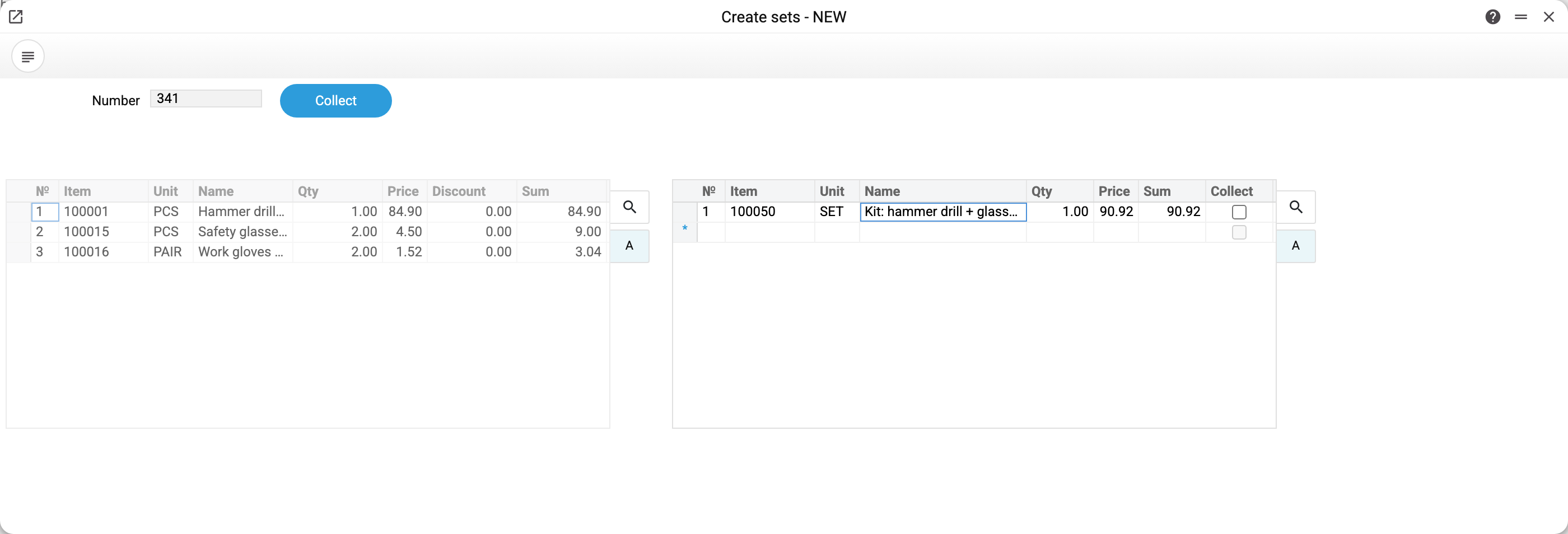
On the left are the invoice lines. On the right are the sets they add up to: the system has matched the items against the composition of every set in the database. The "Collect" column is what you confirm.
- the "Collect" tick removes the components from the left-hand table: what went into the set disappears from the list of separate items;
- the set quantity can only be decreased — down to zero, not below; never raised above what was offered;
- untick it and the items come back to the left-hand table in the same quantity;
- the "Collect" button at the top writes the result into the invoice and closes the window.
The price of an assembled set is the sum of the components of ONE set, not the price from the set's card. The sum of all the lines that went into the sets becomes the sum of the set line, and the price is that sum divided by the number of sets assembled. In the example above the drill 84.90 + glasses 4.50 + gloves 1.52 give a set of 90.92, while the set card says 92.00; two such sets make a line of 181.84 with a price of 90.92. Discounts entered on the lines are preserved.
The result lands on the invoice's "Print" tab:
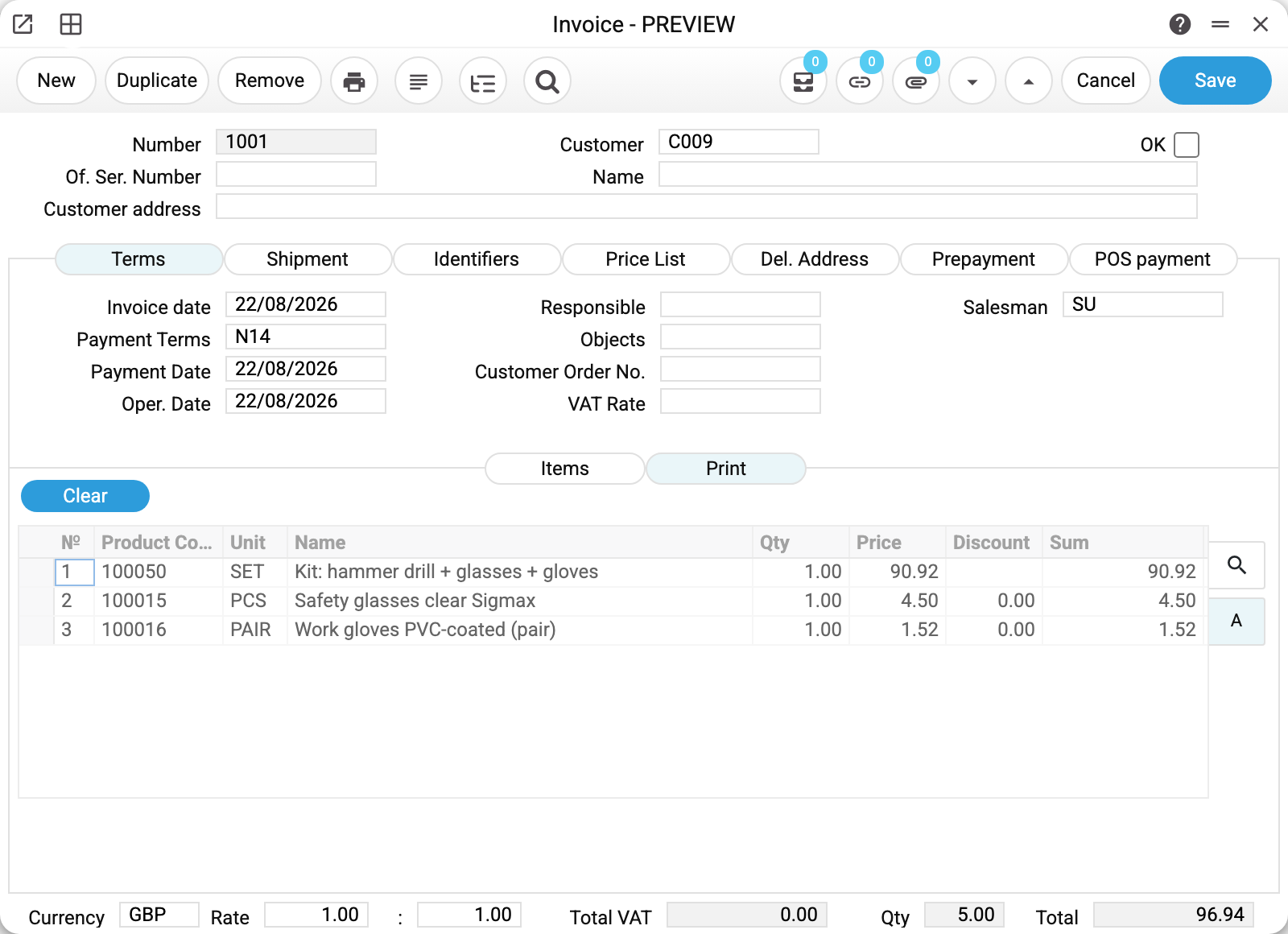
This is the copy of the lines the customer will see in the printed form: the set as one position, and whatever did not fit into it as separate lines. The total of the lines matches the invoice total.
The invoice lines themselves stay untouched — stock, cost and postings are calculated from them. While the "Print" tab holds anything, the invoice lines cannot be edited; the "Clear" button on that tab removes the copy and returns the invoice to its normal state.
Selling part of a set
This is the typical case for the second route. The customer takes a set plus one more pair of glasses and gloves — three lines in the invoice: drill 1, glasses 2, gloves 2.
After "Collect" the print shows: set × 1, glasses × 1, gloves × 1. One set was assembled, the remainder stayed as separate positions. There is no need to take the set apart by hand or to invent "half a set".
Receiving a set from a supplier
The supplier delivered ready-made sets in a box. In the goods receipt you enter a line with the set code and a quantity — and once the quantity is entered the system replaces that line with the components:
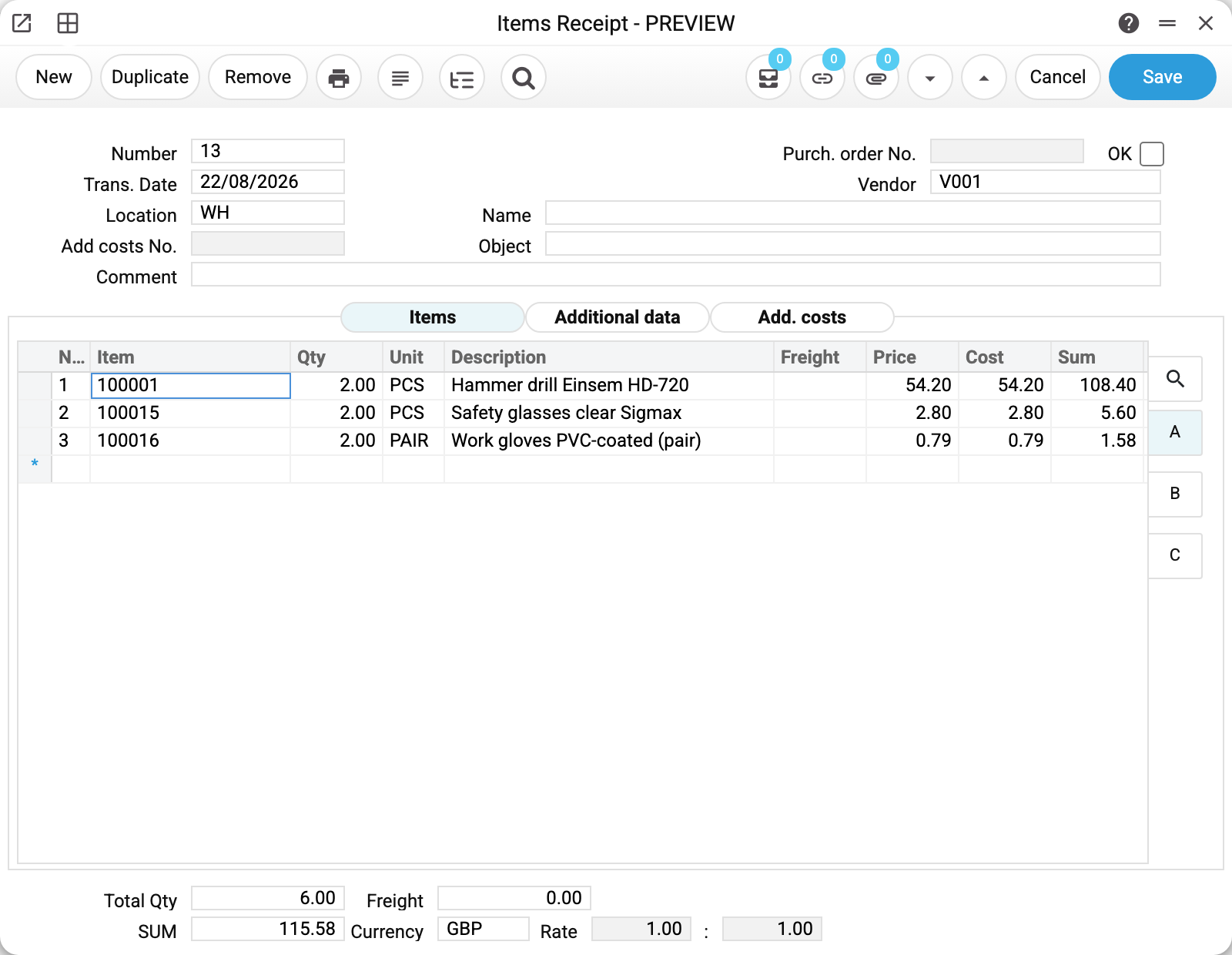
The components are easy to spot: each has "↳" before its code, and the "Set" column holds the code of the set they came from. The column is not shown to everyone: it is switched on by the "Show "Set" column in Goods Receipts and Stock Movements" box in the items setting — companies without sets do not need it. The "↳" mark does not depend on the box, and the set code is always stored in the row.
No line of the set is left in the document at all: two sets became drill × 2, glasses × 2, gloves × 2 at the purchase prices from their cards. Which makes sense — it is the items that land in the warehouse, and from there they can be handled separately.
A stock movement behaves the same way: enter a set and you get the component lines.
Ordering a set from a supplier, however, is not possible. In a purchase order the set is rejected: Unable to order non-stock item! You order the components — and receive against them, or receive as a set as described above.
Typical situations
The set is not in the stock figures. That is by design: only the components have a balance. To see how many sets you can assemble, look at the scarcest component.
I approved an invoice with a set and nothing changed in stock. Check the "Update warehouse" checkbox on the invoice's "Shipment" tab and whether the location is filled in — the write-off goes from there.
I assembled a set and now the lines will not change. That is the "Print" tab lock. Press "Clear" on it and the lines become editable again.
The "Create sets" window offers no set. A set is only offered when the invoice holds all of its components in sufficient quantity. One missing component and there is no offer.
All components are on the invoice, but the set is not offered. Open the set card, "Item Sets" tab: if the component quantities are zero or empty, the set cannot be assembled from such contents and the system does not offer it (other sets are offered as usual). Enter the quantities per set and open the window again.
I want a set made of sets. Not possible: only ordinary items are allowed in a set matrix. Build one set with the full list of components instead.
Where to look next
- Items/Services — the set card and the rest of its tabs.
- Invoices — the sales document itself.
- Goods receipts — receiving into the warehouse.
- Stock movements — moving between locations.