Price Forms
When prices are derived from something — «retail less ten percent», «cost plus a margin» — there is no need to maintain them by hand. The rule is written down as a formula, the formula goes into a price list, and the «Calculate Prices for Items» maintenance fills the «Prices» register by itself — for five items or for five thousand.
Where to find it: Modules → Prices → Registers → Price Forms
The register lives in the Prices module.
A worked example
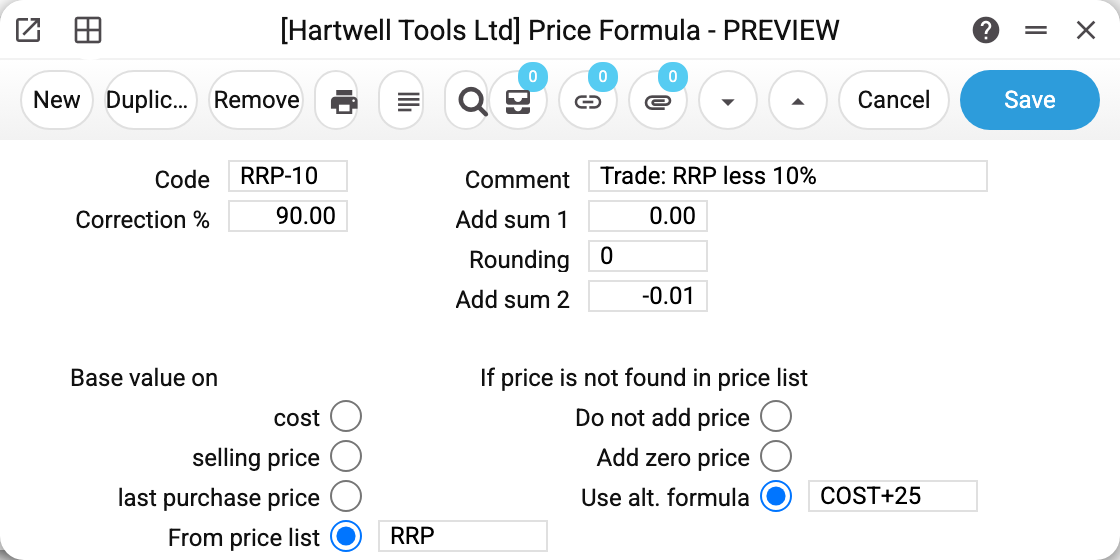
The RRP-10 formula from the demo database builds trade prices out of retail ones. The card reads like this: take the base value, multiply by «Correction %», add «Add sum 1», round to the digits in «Rounding» and add «Add sum 2». In exactly that order: the first sum goes under the rounding, the second is added after it.
- «Base value on» — where the base comes from: the item card's «cost», «selling price» or «last purchase price», or «From price list» — then the list is named next to it. Here the base is the RRP price list.
- «Correction %» — what percentage of the base the result will be: 90 — ten percent off, 110 — ten percent up, 100 — unchanged.
- «Rounding» — the number of decimal places: 2 — to pennies, 0 — to whole units, and a negative number rounds to the left: −1 — to tens, −2 — to hundreds. An exact half always goes up: 31.5 → 32, and 45 → 50 at −1.
The masonry drill bit is 4.60 in RRP. RRP-10 says: 90 % → 4.14, rounding to whole units → 4, «Add sum 2» −0.01 → 3.99. One rule produces «psychological» price tags: in the demo trade price list every consumables price ends in .99.
The right-hand column — «If price is not found in price list» — matters only for the «From price list» base: what to do with an item the base list does not have. Three ways out: «Do not add price», «Add zero price» or «Use alt. formula». RRP-10 picks the third: the respirator is not in RRP, so its trade price is built by the fallback formula COST+25 — cost plus a quarter: 1.30 → 1.63.
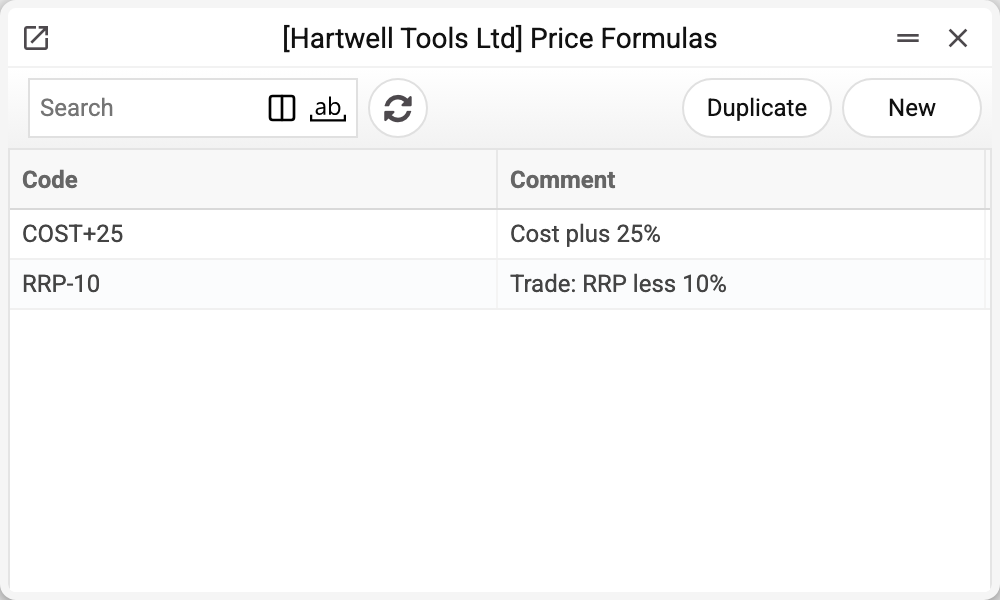
Where a formula works
A formula on its own computes nothing — it is written into the price list's matrix:
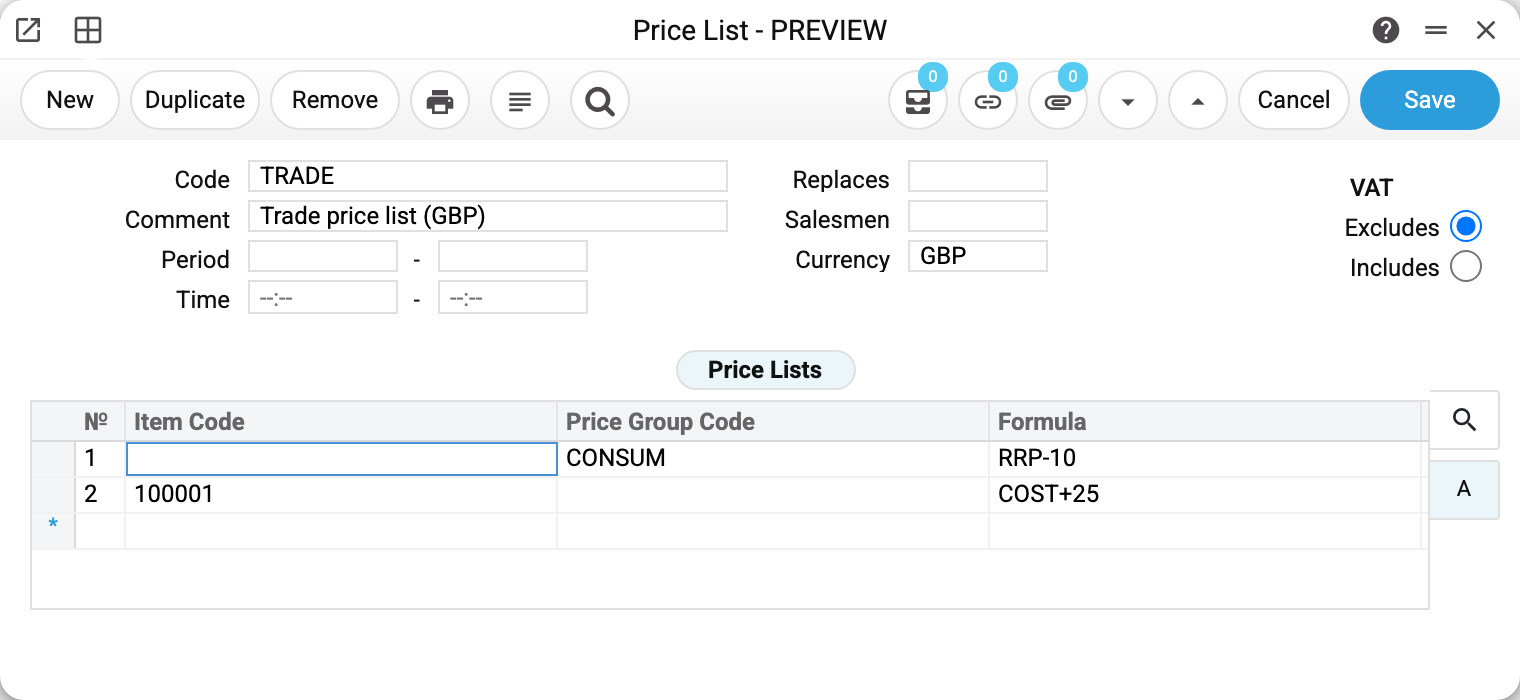
Every matrix row is a rule saying «who gets which formula»: a price group (row 1: all consumables via RRP-10), a specific item (row 2: the hammer drill via COST+25), or an empty row with just a formula — then the rule covers all items. A rule for a specific item beats the group one: groups are computed first, then the per-item rows override them.
The rules are turned into numbers by the «Calculate Prices for Items» maintenance in the Prices module. It can be narrowed by its parameters — one price list, one price group or one item. The result lands in «Prices»: existing rows are updated, missing ones are created. Prices not governed by formulas are left untouched. When the price list has a currency, the recalculation converts the base into it at today's rate (cost and selling price — from the base currency, the last purchase price — from the purchase currency, another price list's price — from that list's currency); with no rate the base stays unconverted.
How to work with it
1. Create the formula
Code, comment, the base, the percentage. For the «From price list» base — also the «if not found» behaviour.
Always select the base: a card without «Base value on» selected is saved, but the recalculation by such a formula calculates nothing — items without a price get none, and existing prices stay as they were. The same goes for the «From price list» base with no option selected in «If price is not found in price list»: items missing from the base price list get no price.
2. Put the rules into the price list
In the price list's matrix: a row per price group, per item, or one empty row «for everyone» — with a formula code in each.
3. Run the recalculation
The «Calculate Prices for Items» maintenance, narrowed to the price list if needed. Check the result in the «Prices» register.
Common situations
Entered 10 into «Correction %» expecting ten percent off — and prices dropped tenfold. The field is not a discount but the share of the base in the result: ten percent off is 90.
Why two add sums? «Add sum 1» is added before the rounding, «Add sum 2» — after it. The 3.99 price tag is built by the second one: round to whole units and take a penny off.
Ran the recalculation — nothing changed. Check the matrix row: does a formula with that code exist, and are the items actually in that price group. And the base: if it is «From price list», the item is missing there and «Do not add price» is selected — no price row will appear.
Can I round to a pound, or to tens? Yes: «Rounding» 0 — to whole units, −1 — to tens. Negative values round to the left of the point.
A formula cannot be deleted: «A record of «Price Forms» is used in: Price Lists!» A formula can be deleted only while its code is on no row of a price list matrix and no other formula uses it as its alternative (then the refusal ends with «Price Forms!»). Deleted, it would leave the price list with a code that leads nowhere: the price list could no longer be saved, and the recalculation would silently skip that row, keeping the old price. First remove the code from the price list rows or put another formula there. A formula set as its own alternative holds itself: switch «Use alt. formula» to another option and clear the code next to it — then it deletes.
Field reference
| Field | Description |
|---|---|
| Code, Comment | The formula's name; the code is what goes into a price list's matrix |
| Correction % | What percentage of the base the result will be (90 = ten percent off) |
| Add sum 1 | Added to the base before the rounding |
| Rounding | Number of decimal places; negative — to tens, hundreds |
| Add sum 2 | Added after the rounding (typical use — −0.01 for .99 price tags) |
| Base value on | The base: cost, selling price, last purchase price or another price list |
| Field next to «From price list» | The base price list's code |
| If price is not found in price list | Do not add price / add a zero one / use the alternative formula |
| Field next to «Use alt. formula» | The fallback formula for items the base list does not have |