Account Classifications
The directory of chart-of-accounts sections. Every account card has a "Class" field — the first digit of its number: 3 "Cash, settlements and other assets", 7 "Income and results". This register is the list of those classes: a code plus a name, ten rows covering the whole chart.
Where to find it: Modules → Nominal Ledger → Registers → Account Classifications
Walkthrough
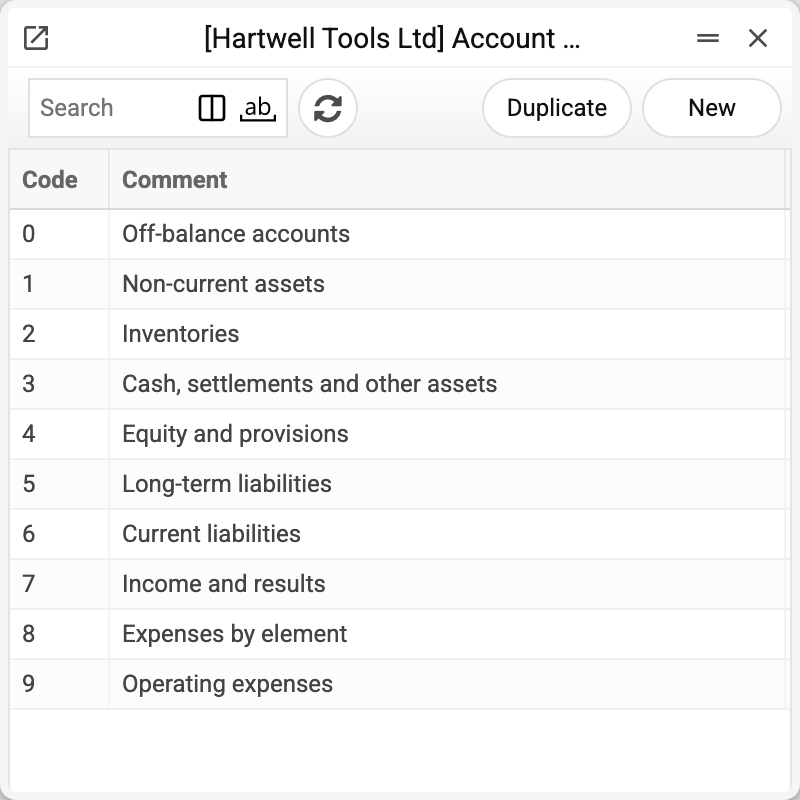
The demo holds the standard ten classes, 0–9 — from off-balance accounts to operating expenses. A record could not be simpler: Code (the class digit) and Comment (the name). The code is unique.
What it is for
- The "Class" field of the account card points here — the way to group the chart of accounts into sections.
- Graphs (key performance indicators) are built not only on individual accounts but on whole classes: the row "class 7, Credit" in an income indicator means "every account whose card says class 7". Add a new class-7 account — the indicator picks it up by itself, no editing needed.
- The sign in the Analytical Balance also works by classes — but by a different card field ("Account type": Asset/Liability/Equity/Income/Expense). Do not confuse the two groupings: "Account type" is the accounting nature, "Class" is the chart section.
Worth knowing
- The class in the account card is an ordinary input: the system only checks the code exists in this directory (and that it is a single one — comma lists are rejected). It usually matches the first digit of the account number, but indicators check the FIELD, not the number.
- A class referenced by chart-of-accounts accounts or by rows of key indicators cannot be deleted: the refusal "A record of «Account Classifications» is used in: Accounts!" names the first such place. Otherwise an account of that class could no longer be saved, and a class-based indicator would stop finding its accounts.
- XLSX import works for this directory — the demo even ships an import definition for it; that is how the classes were loaded in the first place.
Print variables
Values available in this document's printed form templates. How to write a variable in a template — see Print Forms.
Header fields:
| Variable | What it holds |
|---|---|
| AccClass_No | Code |
| AccClass_Comment | Comment |
Common situations
A new account does not show in the income chart. Look at the "Class" field of its card — empty or a different digit. Indicators search by this field.
Can I create my own classes? Yes, it is a regular directory — the code need not be one digit (the system stores letters in upper case). Just remember to set the new class on the relevant account cards. The code of a saved class cannot be changed ("Can't change code") — if you need a different code, create a new class.