The desktop: windows, search and bookmarks
ERPJS opens as a desktop, not as a page. A register is a window, a record card is another window, a report result is a third; they lie on top of each other, and you move, minimize and close them. Browser habits do not apply here: there is no «back» button, and a closed window does not come back from history.
Hence the two questions every new user starts with: where do I find the register I need and where did the window I minimized go. This article is about the screen itself, not about the documents on it.
The menu on the left shows one module at a time
Top left there is «Modules», and next to it the sections of the active module: «Registers», «Settings», «Reports», «Maintenances». How to run a report and where its result goes — a separate guide.
The main thing to know about them: these lists hold the objects of the currently selected module only. Switch the module and the contents of all four lists change at once.
So «the Stock module has no "Invoices" register» is neither a fault nor a lost menu item: invoices live in their own module, and Stock shows stock things. What lies in which module is in the module overviews, which also carry the «Where to go with your task» table.
One object can belong to several modules: contacts appear in CRM, in purchasing and in sales, because all three need them. The reverse is true as well: an object that belongs to no module you have enabled will not appear in the menu at all — and that is a question of rights and module set, not of searching.
Two more sections — «System Registers» and «System Settings» — show up only for those without the System module: their system objects are collected separately so they do not disappear altogether.
«Search in system» — when you do not know which module to look in
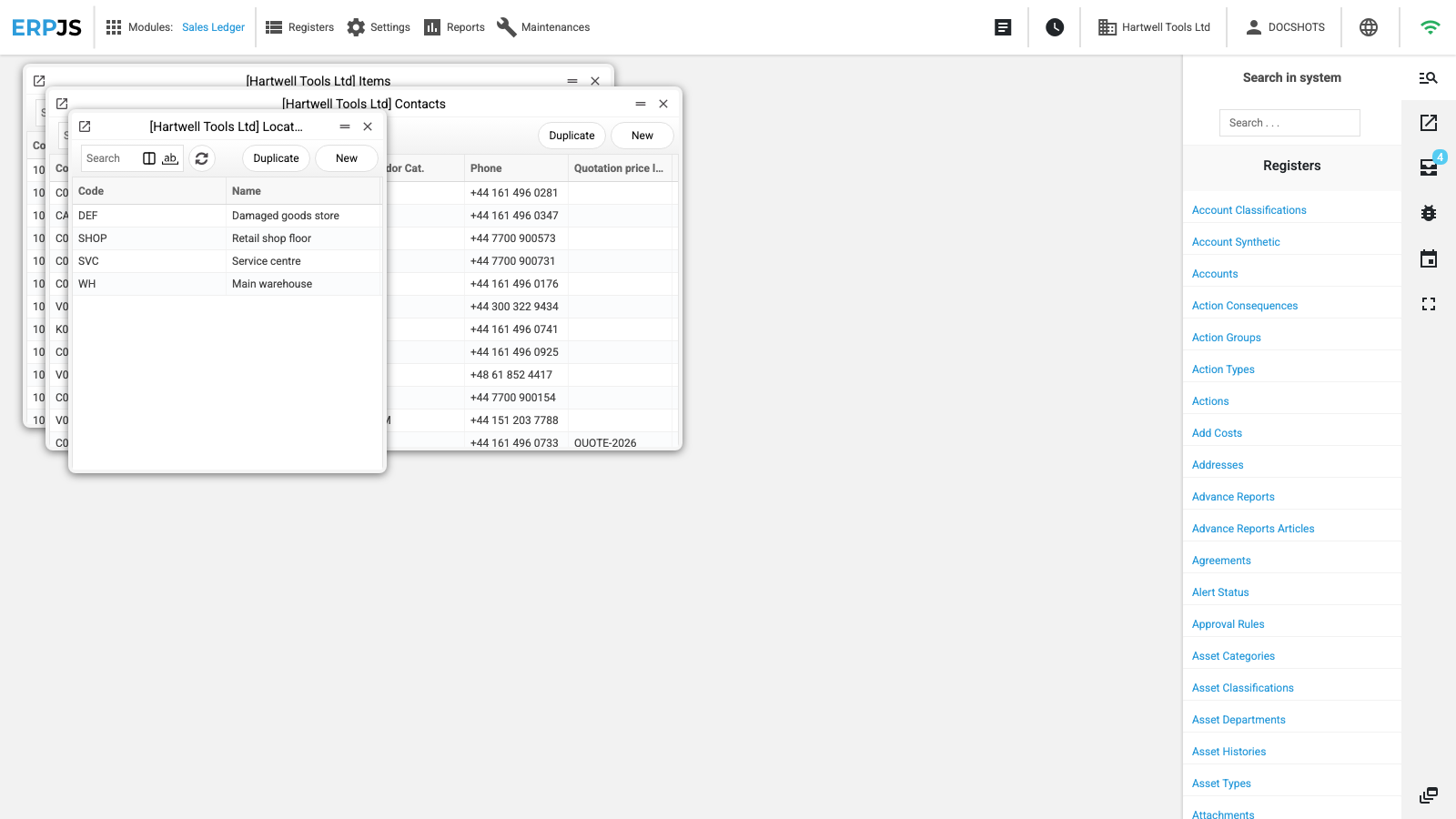
The magnifier button is the topmost one in the narrow strip of buttons along the right edge of the screen. It opens the «Search in system» panel. It holds a «Search . . .» field, and below it everything you are allowed to see: registers, maintenances, reports, settings, each section under its own heading, alphabetical inside.
The list narrows as you type: your text is matched against the name in your own language, and any part of a word will do. Type «stoc» and you get both locations and stock documents, whatever module they sit in.
This is the right answer to «I cannot see the item in the menu». The left menu is about the module; the search is about the whole system. It only shows what your role is allowed to open, so an empty result means one of two things: there is no such object, or it is not permitted to you.
Section headings stay in place while you filter, even when nothing is left under them — read the rows, not the headings.
Windows, not pages
Every opening is a separate window. New windows are laid out with a step so they do not cover each other completely; a window can be dragged by its header, resized, minimized or closed.
On a card with several tabs, the tab buttons show where something is without clicking each one. A blue dot on the button means at least one field on that tab is filled in. A faded label means the tab's fields are empty. A button with no mark at all does not mean "empty" but "not assessed": that happens on a tab holding a list loaded separately, such as a contact's addresses. A choice from a list (a type, a mode) does not count as data — it always has a value.
A minimized window does not disappear — it goes to the «Open windows» panel, opened by the lowest button of the same right-hand strip. It lists every open window at once:
- the name and the record number — that is how you recognize a window;
- a star instead of a number — the window holds a new record that has not been saved;
- a coloured stripe on the left — the kind of window: journal, card, report, report result;
- clicking the row brings the window back to the front, the bars icon minimizes it, the cross closes it.
Above the list are three commands that act on all windows at once: «Minimize windows», «Close windows», «Close messages» (the last one clears the pop-up messages that have piled up).
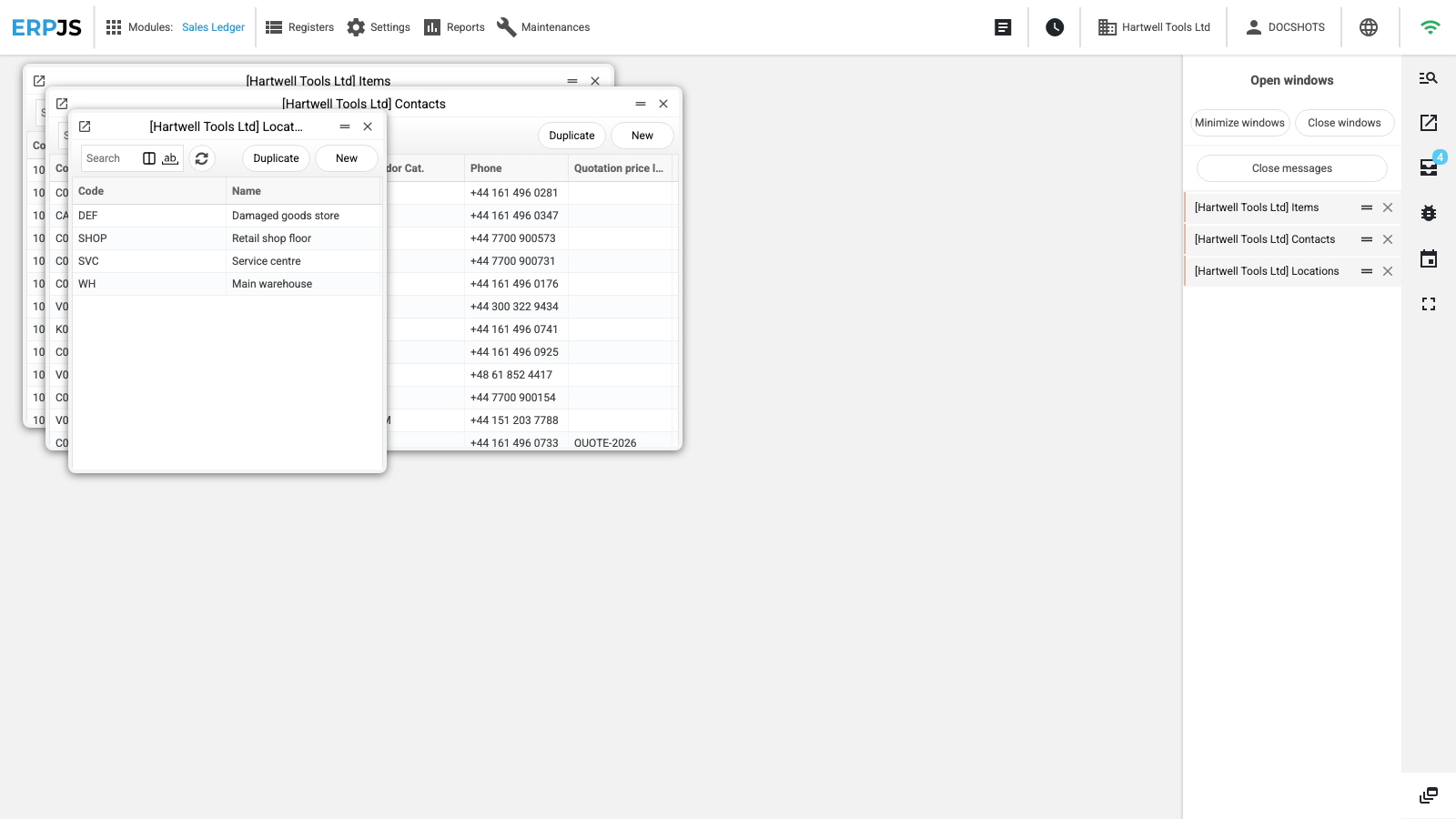
One important detail: «Close windows» does not close everything. Windows with an unsaved new record or a copy of a record and windows in edit mode stay on screen. That is not a fault but a safeguard: the system does not throw away what you typed without saying so. If one window is left after «Close windows», it is because there is something in it to lose. Only the «Report bug» form and the password change window do not know about what you typed: they close together with it, just as with their own close button.
«My bookmarks» — your own list of what you use daily
The «My bookmarks» panel is opened by the second button from the top of the right-hand strip. While it is empty its point is not obvious; you fill it from the windows themselves.
How to put a window into bookmarks. In the header of an open window, on the left, there is a small button with the same arrow as on the panel button. Press it and the window is in the list. The system composes the name itself: the window title plus the record number, and for a new-record window with the «NEW» prefix. The same bookmark cannot be added twice — the answer is «Link» … «is already added to the link menu».
It is not only document cards that can be bookmarked: a register journal, a report, a maintenance go into the list the same way — and open later with a single click, bypassing the menu.
Folders and order. The folder button at the top of the panel reveals the «Folder name» field — this is how sections like «Every day» or «Month end» appear. A bookmark is dragged with the mouse into a folder and back out to the top level — it goes to the end of the list. The order of rows is changed with the up and down arrows on the left of each row. The order is remembered.
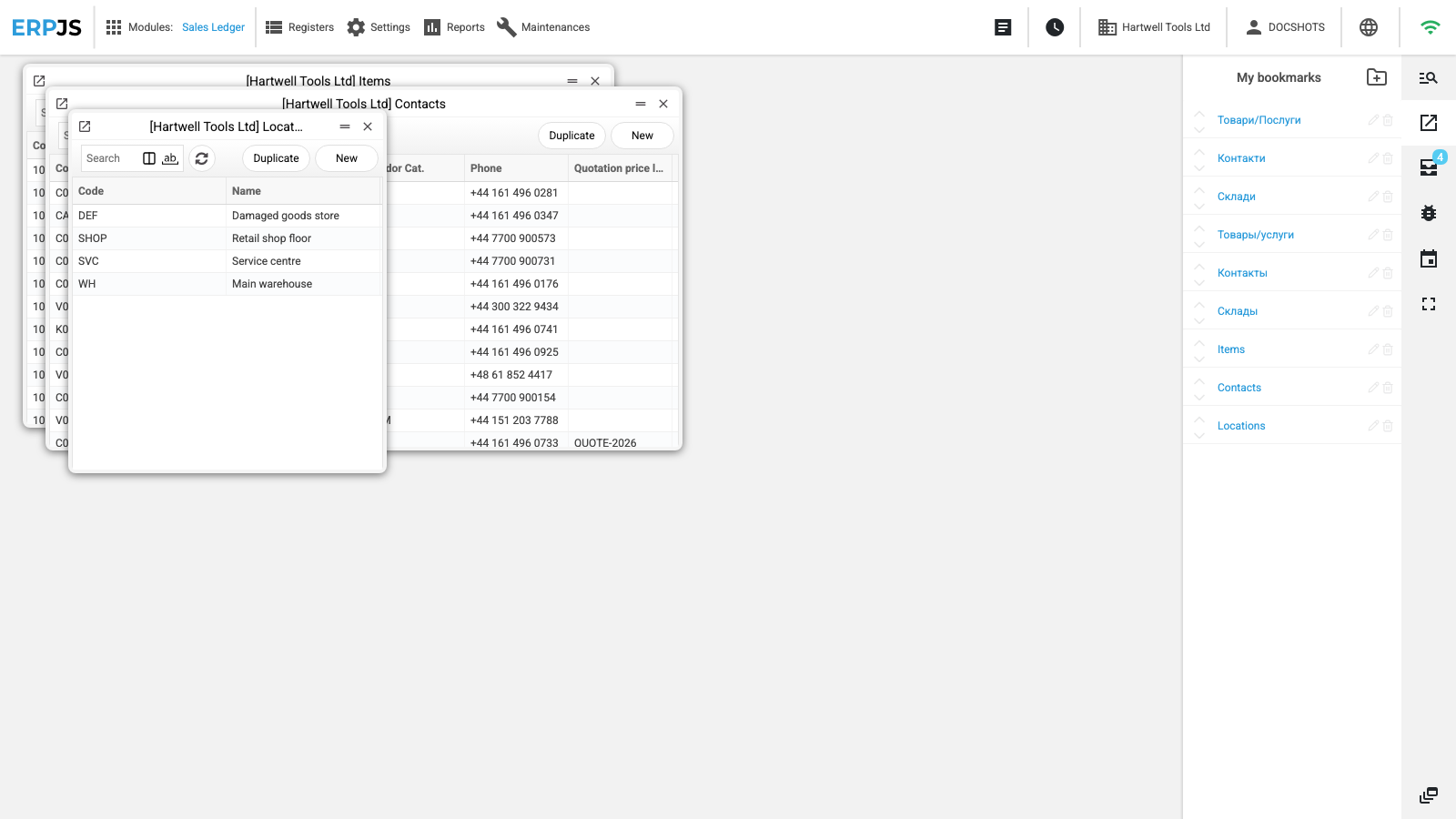
Rename and delete. Hovering over a row shows a pencil and a bin. The pencil edits the caption only — where the bookmark leads is unaffected. The bin deletes immediately, with no «are you sure»; a deleted bookmark cannot be restored, but nothing is lost — the record itself stays, only the link to it is gone.
Bookmarks are personal and shared across companies. The list belongs to your login: a colleague with their own account sees their own. At the same time it is one list for all companies — switching company does not change it. Hence the rule: a bookmark to a particular record makes sense in the company where it was made; in another company the same number belongs to another document, or to none.
The buttons along the edges of the screen
The strip along the right edge, top to bottom: search in system, bookmarks, tasks, problem report, calendar, full screen. The lowest one, set apart from the rest, is open windows.
The tasks button carries a counter: the number beside the icon is how many tasks are on you right now. The panel lists them, and the «Open actions list» button leads to the tasks register itself.
The top row: on the left «Modules» and the sections of the active module; on the right the resource manager, process management, the name of the current company, your login («Change password» and «Logout»), the interface language and the connection indicator. The indicator goes out when the link to the server is lost — that is the first thing to look at when the system stops responding.
Interface language. Until you choose a language, the system opens in your browser's language if it is Ukrainian, Russian or English; otherwise in Ukrainian. The language you choose on the right of the top row is remembered in this browser: next time the system opens in it. If you sign in through the ERPJS cabinet (the cloud version), the cabinet sets the language at sign-in.
The company name is not only in the top row: every window title starts with it — «[Hartwell Tools Ltd] Items». The system drops that prefix from the bookmark name, because the bookmark list is shared across companies.
A grey, unclickable button means a missing right rather than a breakage: process management and the resource manager open only for roles that are allowed to.
Common situations
«The register I need is not in the menu, but my colleague has it». Either you are in a different module — check with the system search — or the object is not allowed to your role. The difference shows at once: what your rights exclude, the search does not show either.
«I minimized a window and cannot find it». The «Open windows» panel, then click the row. The window comes back exactly where it was.
«I pressed "Close windows" and one stayed». It holds an unsaved new record or an unfinished edit. Save it or close it by hand.
«The bookmark opens the wrong record». Most likely you are in another company: the bookmark list is shared, while record numbers belong to each company separately.
«The bookmark will not be added, it says it already is». The same bookmark is in the list — possibly inside a folder. Expand the folders and look.
«I opened too many windows and ran out of room». «Minimize windows» clears all windows off the screen in one go without closing anything: the work in the windows is not lost, and the «Open windows» panel stays as your to-do list. The calendar does not minimize — close it with its cross.