Prom Statuses
The directory of marketplace order statuses — "received", "in processing", "delivered", "canceled" exactly as Prom itself names them. Nobody fills it by hand: the list is pulled from the cabinet by "Prom: download statuses". It serves one place — the "Prom" tab of a sales order, where the status code is picked from this directory.
Where to find it: Modules → Prom → Settings → Prom Statuses
Walkthrough
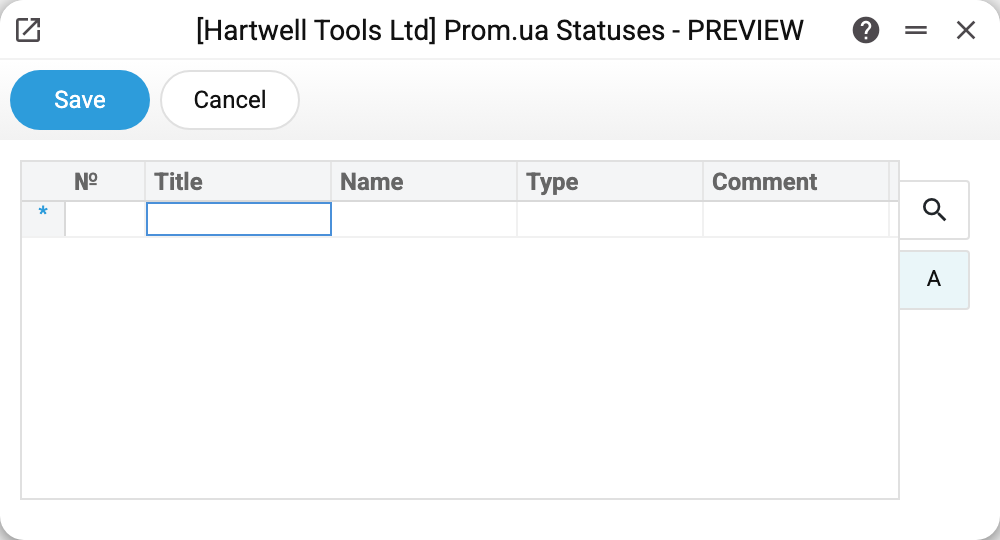
The matrix columns: the row number, Title (the human name of the status), Code (the system name like received or canceled — exactly what is stored in the order and sent to Prom), Type and Comment. The service takes the title, code and type from what Prom reports; the comment is only for your notes, nothing reads it. In the demo the matrix is empty — with no API token in "Prom Options" there is nowhere to load the list from.
How statuses work in an order
An order arriving from the marketplace has class PROM. The "Prom" tab is in every sales order as soon as the host is filled in "Prom Options": the status, the buyer's notes, the delivery address and cost, the payment option. The pair "Status code" + "Status name" is filled by "Prom: update orders" — when it brings a new order and when the order changed on Prom.
The reverse direction works too: change the status code in an unposted order — the system pushes it to Prom (the buyer sees the change in their cabinet). Only a change of the code is sent, and only in an existing order of class PROM with a Prom order number. In a posted order the status code cannot be changed by saving — the "Prom" tab fields there are written only by the service. For "canceled" the cancellation reason from the neighbouring field travels along; if the field is empty, the buyer sees "The order was cancelled by the seller". The push is best-effort: if Prom is unreachable, the order still saves and the error stays in the server log.
Common situations
The matrix is empty. Run "Prom: download statuses" — after checking the token in "Prom Options".
New statuses appeared on Prom. Same recipe: the maintenance rewrites the directory wholesale on every run, so it always mirrors the cabinet.
Changed the status in ERPJS, Prom still shows the old one. Check the server log: most likely Prom did not respond at save time. The same code cannot be sent again by saving — the system sends only a change of the code. "Prom: update orders" will not fix the status on Prom either: it carries the Prom state into the order when the order changed there after your save.